54 — 第一个 React 应用
介绍
到现在你大概已经明白了,我们要用 React。也许你已经了解 React,也许还没有,又或者你只是需要快速复习一下。
不管怎样,既然这门课对初学者很友好,我们就一起学习 React,同时把 Three.js 和 R3F 先放到一边。
不要期待这节课有创意、好看。虽然这节课相当实用,但接下来的课程才会挑战你的创造力。
到这节课结束时,你应该掌握后续内容所需的一切,而且还会多学一点,让你真正理解 React 以及如何使用它。
如果你已经对 React 感到得心应手,可以直接跳到下一课。
不要被你要学的信息量吓到。确实很多,但记不住、理解不了全部是完全正常的。我们会在接下来几节课里实践我们所学的内容。
设置
为了真正理解 React,我们会用几种不同的方式来启动项目:
- 用 NPX 和 Create React App。这种方式会创建一个默认的 React 应用,并且一些功能已经开箱即用。
- 从零开始,以真正理解发生了什么。
- 用 Vite,这样我们就沿用一个好的构建工具。
用 NPX 和 Create React App
创建 React 应用最常见的方式之一,是用 npx。
npx 随 Node.js 和 NPM 一起安装。它让我们无需像用 npm 那样先创建项目并安装依赖,就能运行 NPM 包。
这里的思路是,我们要运行一个 NPM 包来创建一个默认的 React 项目。这个 NPM 包名叫 create-react-app(https://www.npmjs.com/package/create-react-app)。
我们在这里演示它只是为了学习,但不会真的用它。你可以只读读下面这部分,或者出于好奇动手试试。
创建一个文件夹,随便起个名字。就叫 XX-first-react-application 吧(XX 是这节课的编号)。
用终端进入这个文件夹,运行 npx create-react-app .(. 表示我们希望项目就建在当前文件夹里)。运行这条命令可能会因为与 React 19 版本不兼容而报错。如果你遇到错误,就跳到下一节,我们在那里学习另一种方式。
如果它问你是否安装某个依赖,输入 y 并按 Enter。
等一会儿,你就会在文件夹里得到一个小的、可直接使用的 React 项目。你可以用 npm run start 启动它。
这是个很棒、很流行的方案,但里面有很多我们其实并不需要的文件和功能。
从零开始
现在我们来看看不用 NPX 如何创建 React 应用。
创建基础项目
清空 XX-first-react-application(XX 是这节课的编号)文件夹,并在该文件夹里打开终端(如果你还没这样做的话)。
我们要用 npm init -y 创建一个项目。
创建项目只需要设置一个 package.json 文件,它构成每个标准项目的基础。
加上 -y 会指示项目使用所有默认值。如果你不加 -y,终端会向你抛出一堆问题,比如项目名称、版本、作者等等。
版本
React 仍在开发中,这很好!一个庞大的社区在为之努力,它也在不断演进。但坏处是,学习资源在某个时候会过时,我们要用到的很多库也是如此。
这就是为什么从现在开始,我们要使用非常具体的依赖版本。我会尽量让这些依赖保持最新。
如果你在安装依赖时看到一些漏洞警告,不要惊讶。大多数情况下它们是无害的,尤其是我们创建的只是些简单的、不会被黑客攻击的小实验。
不过对于未来的项目,你应该把依赖更新到最新版本,并确保一切正常工作。
要把某个依赖更新到最新版本,运行 npm install theDependency@latest(这行命令只是个例子,不要执行它)。
如果你遇到问题,别犹豫,去 Three.js Journey 的 Discord 服务器上寻求帮助。
依赖
在项目文件夹的终端里,运行 npm install react@18 react-dom@18.2 react-scripts@5.0 来安装依赖。
下面是每一个的作用:
react是 React 的核心。react-dom是一个 DOM 渲染器,它会把我们在 React 里写的东西转换成网页的 DOM 元素。react-scripts包含我们需要的常见脚本,比如运行开发服务器或为生产环境构建。react-scripts实际上就是为create-react-app打造的。
脚本
我们需要给项目添加两个脚本。一个会启动本地开发服务器,这样我们就能在自己的电脑上开发项目。另一个会为生产环境构建。
在 package.json 的 "scripts" 属性里添加下面两个脚本(你可以删掉 "test" 脚本):
{
  // ...
  "scripts": {
    "dev": "react-scripts start",
    "build": "react-scripts build"
  },
  // ...
}
以防你不知道,这些脚本可以通过在终端执行 npm run theNameOfTheScript 来运行。你可以随便给它们命名,而且它们能访问项目里安装的依赖(在我们的情况里是 react-scripts)。
(注意 React 用户更习惯用 start 而不是 dev,但我更想沿用前面课程的工作流程)。
让我们创建我们的第一个 React 应用。
public 文件夹
创建一个 /public/ 文件夹。
/public/ 文件夹会包含我们希望按原样提供的公共文件(就像前几节课里的 /static/ 文件夹)。
在 /public/ 里,创建一个 index.html 文件。
如果你用 VSCode,输入 !(或 html:5)然后按 TAB 来创建一个基础 HTML 页面。否则,用任何你喜欢的方式创建这段基础 HTML 代码:
<!DOCTYPE html>
<html lang="en">
<head>
    <meta charset="UTF-8">
    <meta http-equiv="X-UA-Compatible" content="IE=edge">
    <meta name="viewport" content="width=device-width, initial-scale=1.0">
    <title>Document</title>
</head>
<body>

</body>
</html>
把 <title> 改成 XX - First React Application(XX 是这节课的编号):
<title>XX - First React Application</title>在 <body> 里创建一个 <div>,并给它一个 ID 叫 root:
<div id="root"></div>这个 <div> 会包含我们的 React 应用,我们会用它的 ID 来定位它。
src 文件夹
创建一个 /src/ 文件夹。
/src/ 文件夹会包含源文件,它们在被输出为经典、适合网页的内容之前会被处理;通常就是我们的 JavaScript。
在 /src/ 里创建一个 index.js 文件。
在这个文件里,从 react-dom/client 导入 createRoot:
import { createRoot } from 'react-dom/client'createRoot,顾名思义,会创建 ReactDOM 应用的根,我们可以把一个将被这个根替换掉的 DOM 元素传给它(在我们的情况里是那个 ID 为 root 的 <div>):
const root = createRoot(document.querySelector('#root'))我们的 React 应用就差最后一点了。我们现在需要用 render() 方法来渲染它:
root.render(
    <h1>Hello React</h1>
)
在 JS 里看到这样的标签不要惊讶;我们稍后会讨论它们。
启动它
我们这个超基础的 React 应用准备好了,我希望你也准备好了。是时候启动开发服务器了。
在终端里(位于文件夹中),运行 npm run dev。
第一次启动时,脚本可能会问我们要面向哪些浏览器。我们写的代码会被转译以最大化兼容性,React 想知道我们的应用要支持到哪些浏览器和浏览器版本。
按 Y 使用默认浏览器,脚本会把这个默认值保存到 package.json 里,这样每次开始写代码时就不会再问我们。
应用应该会启动,网站应该会在你的默认浏览器里打开:
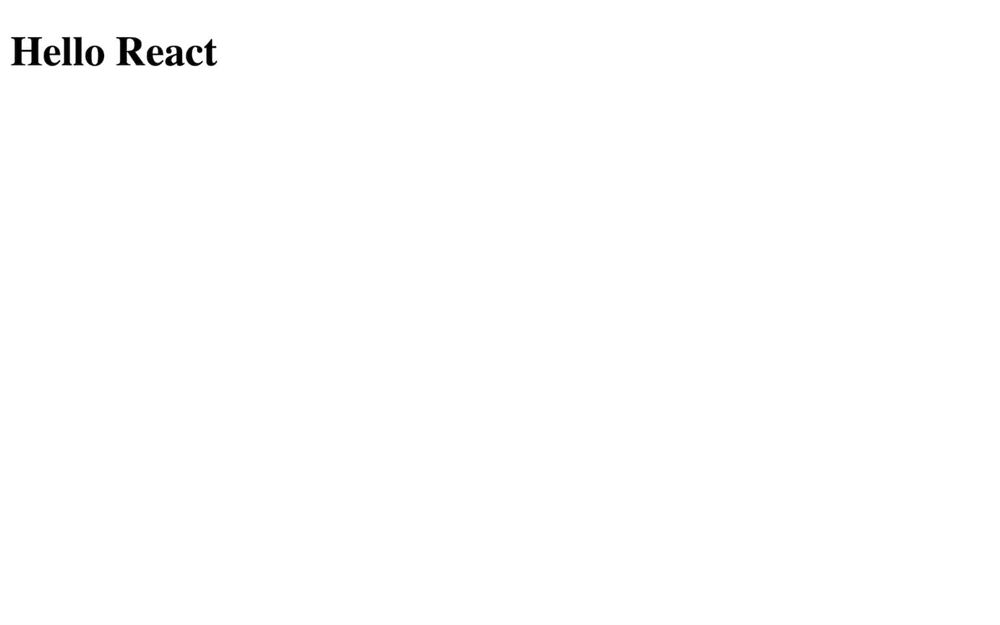
这节课里的截图看起来会有点空、没什么用,但它们会帮你理解屏幕上应该出现什么。
另外注意,视口被放大了,好让东西更容易看清,在你的屏幕上它可能看起来更小。
如果出了什么问题、你遇到了错误,不用费心去修。反正最后我们不会用那个方式。
我们本可以用这个“从零开始”的版本。接下来的课程实际上就是用它录制的,但因为我们前几节课一直用 Vite,而且 Vite 与 React 集成得非常好,所以我们现在要用 Vite 版本。
删除 XX-first-react-application(XX 是这节课的编号)文件夹,或者把它留到别处。
用 Vite
我们要了解如何用 Create Vite 搭建一个全新的 React 应用。
注意这节课是用 Vite 4.0.4 编写和录制的。你自己做的时候可能会注意到一些细微差别。
Create Vite
按照 Vite 文档,我们可以通过运行 npm create vite@latest 来创建项目,就这么简单,即使我们想搭建一个 React 应用也是如此。
但我们先聊聊 npm create,试着理解到底发生了什么。
npm create 是 npm init 的别名(文档)。调用 npm create vite@latest 等同于调用 npm init vite@latest。
npm init 随后会在依赖名开头加上 create-,意味着我们实际上用的是 create-vite 包(NPM 页面、GitHub)。
这个 create-vite 包的作用是在终端里问几个问题,然后创建合适的项目。我们来试试。
在包含你所有课程的文件夹的终端里,运行 npm create vite@latest(你应该已经删除或移动了 XX-first-react-application)。
如果这是你第一次使用 create-vite,终端会问你是否要下载它:

按 y 和 Enter。
然后,选择一个会用作文件夹名的 Project name(以及其他用途):

你可以写 XX-first-react-application(XX 是这节课的编号)或任何适合你的名字:

然后,你需要选择一个框架:
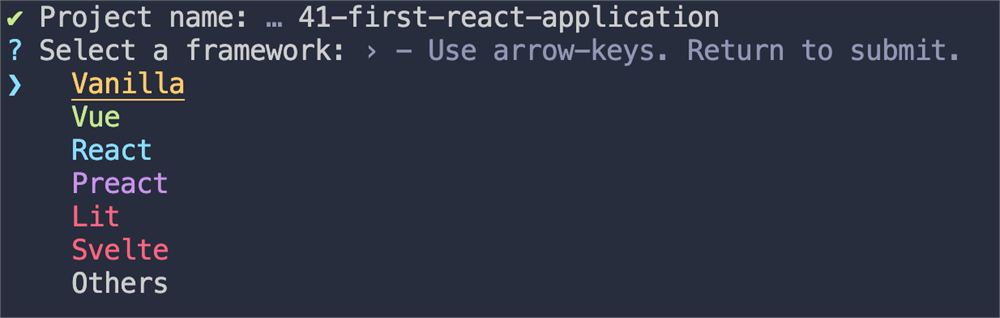
用方向键导航,选择 React 并按 Enter。
然后,你需要选择一个变体:
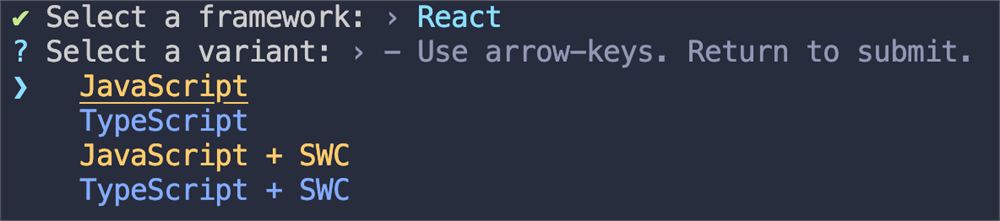
我不会解释那些变体,因为它们将来可能会变。此外,我们想用最简单的那种。用方向键导航,选择 Javascript,然后按 Enter。
项目现在准备好了,终端应该会显示你应该运行的命令,用来安装依赖并启动项目:
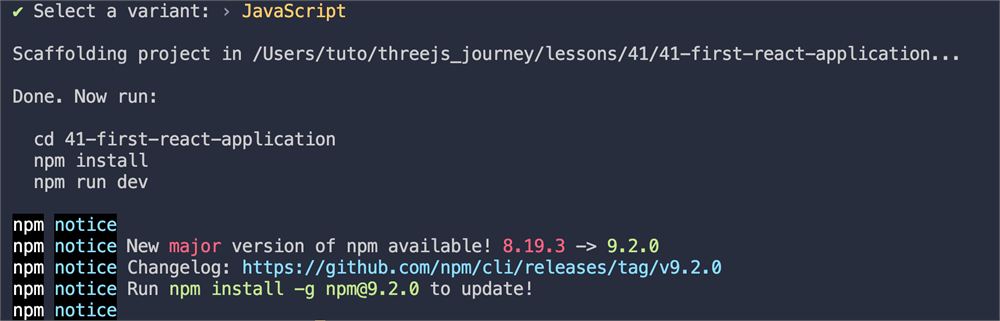
在终端里打开新建的文件夹,运行 npm install 并运行 npm run dev:
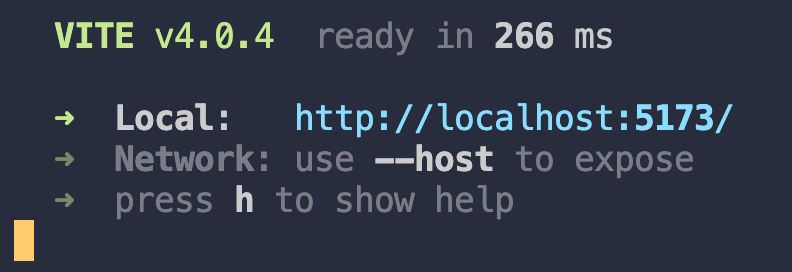
在浏览器里打开显示的 URL,你应该能看到这个 React 应用:
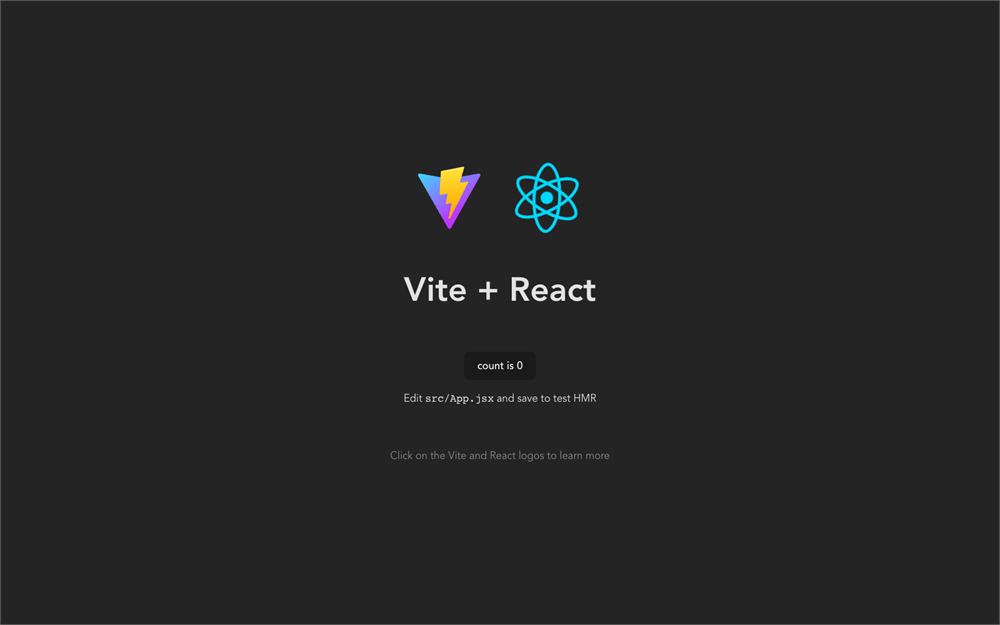
这个模板相当简单,有一些资源、一个更新计数器的按钮,以及一些帮你上手的信息。
这是搭建 React 项目的好方式,但我们要用一个稍微改动过的版本。
使用 starter
课程提供了一个 starter,它是我们前几节课一直使用的模板与用 Vite 创建的 React 项目的结合。
下载 starter,在终端里打开它,运行 npm install 和 npm run dev:
你应该会得到和我们之前一样的基础 React 应用,页面上写着 Hello React。
需要注意的重要一点是,主 JavaScript 文件名叫 index.jsx。使用 .jsx 扩展名被认为是好习惯,不过接下来的大部分课程录制时混用了 .js 和 .jsx。
别担心,Vite 配置同时支持 .js 和 .jsx,你可以决定更喜欢哪个。
我们已经看到多种搭建 React 项目的方式,你可能会觉得这是个复杂的任务,其实不是。我们只是花了点时间去发现各种方案,以便理解到底发生了什么。
如果你想创建一个 React 项目,用 Create Vite 几秒钟就能搭好。
JSX
我们来聊聊我们在 render() 里写的东西。
我们写了一个 <h1>,你可能以为这是基础 HTML,但不是。这是 JSX。
JSX 是一种基于标签的语言,和 HTML 非常接近。然而,它包含的东西多得多。
特性
我们来看看 JSX 的一些特性,能做什么、不能做什么。
缩进不影响含义
我们可以随意缩进,不会有任何后果。可以用 2 个空格、4 个空格,甚至制表符。
这是保持代码整洁、易懂的机会。
必须包含一个元素
render 只能包含一个元素。在我们的情况里,它是一个 <h1>,但也可以是别的:
root.render(
    <div>Hello React</div>
)
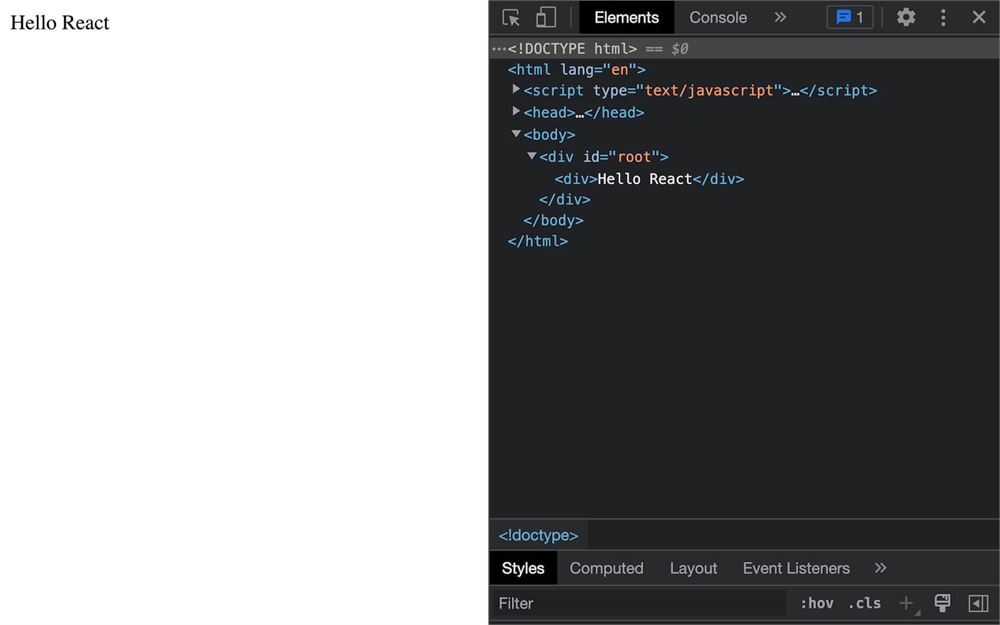
这个元素可以有任意多个子元素:
root.render(
    <div>
        <h1>Hello React</h1>
        <p>Some content</p>
    </div>
)
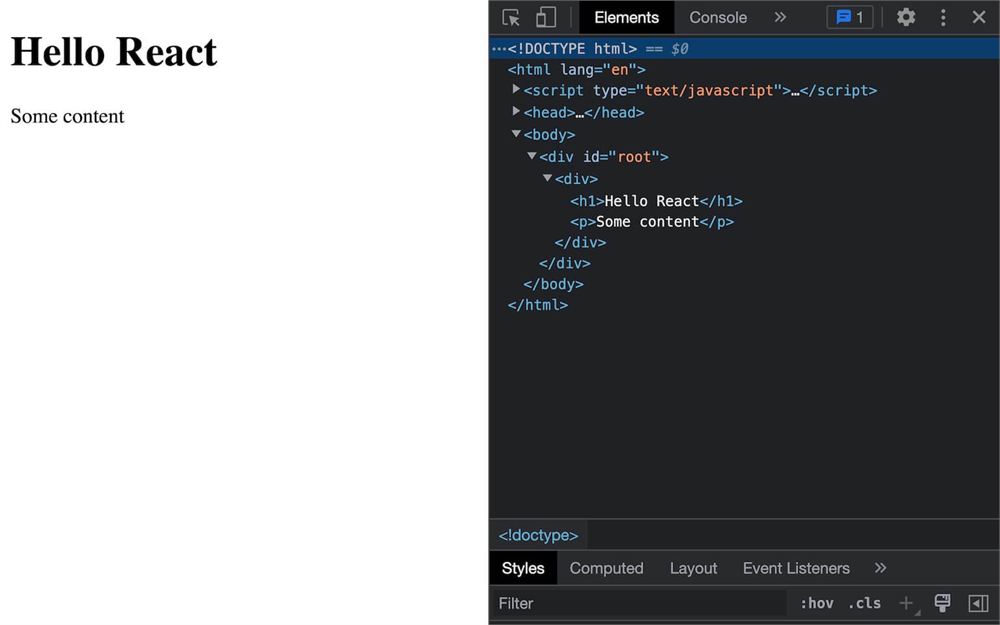
那些子元素还可以有更多子元素:
root.render(
    <div>
        <h1>Hello React</h1>
        <p><strong>Some</strong> <em>content</em></p>
    </div>
)
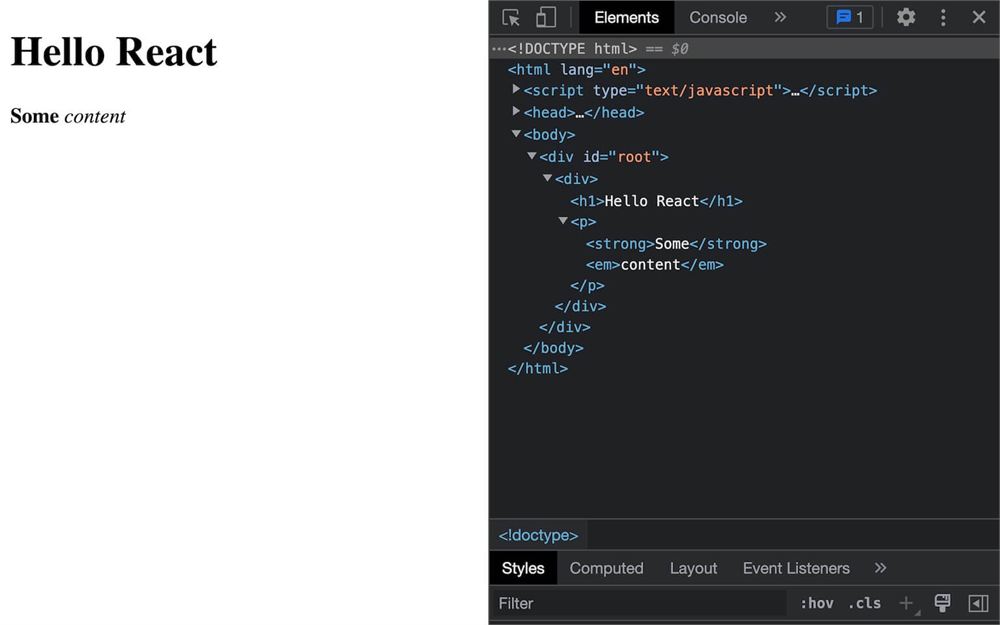
但如果我们真的想有多个元素、又没有单一的主父元素,我们可以用我们所说的 fragment(<>…</>):
root.render(
    <>
        <h1>Hello React</h1>
        <p>Some content</p>
    </>
)
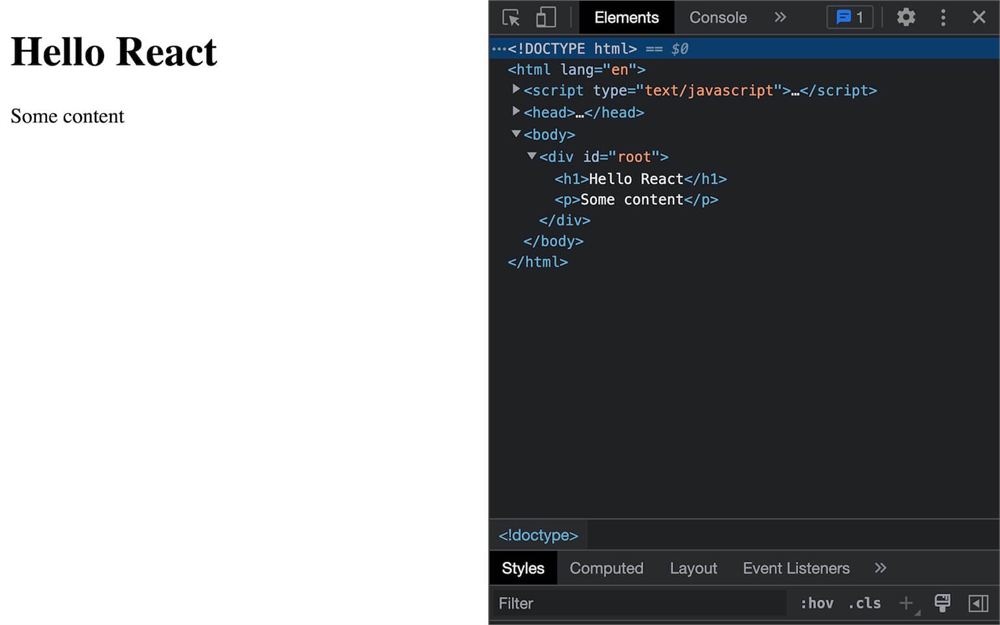
fragment 只是一个容器,它不会被渲染成 DOM 元素。
不能自动闭合
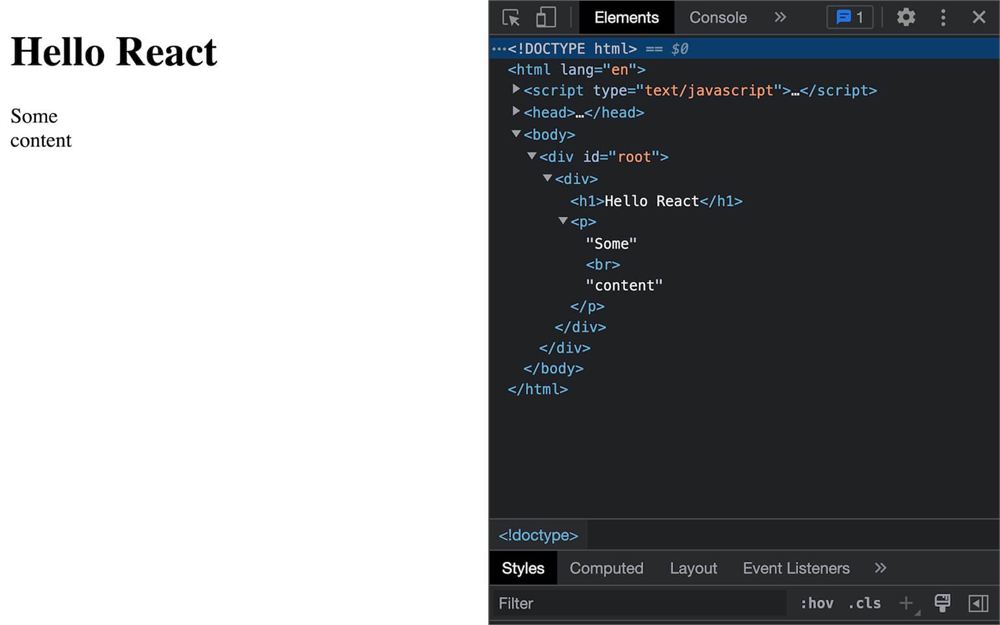
我们不能不闭合就写 <br> 或 <img>。
我们必须加上闭合标签,或者在末尾(> 之前)加上 /:
root.render(
    <div>
        <h1>Hello React</h1>
        <p>Some<br />content</p>
    </div>
)
保留关键字
像 class 或 for 这样的一些关键字是被保留的。这意味着我们不能有名字相似的标签或属性。这样做在某个时候可能会触发 bug。
但如果我们想给元素加一个 class 属性呢?
很简单,它们被替换了:
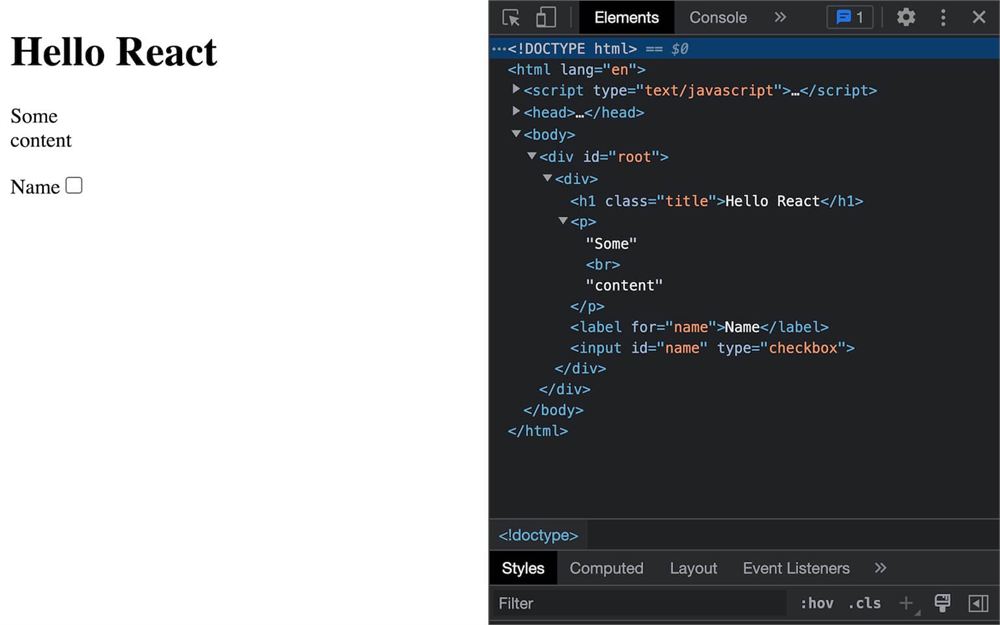
class变成classNamefor变成htmlFor
root.render(
    <div>
        <h1 className="title">Hello React</h1>

        <p>Some<br />content</p>

        <label htmlFor="name">Name</label>
        <input id="name" type="checkbox" />
    </div>
)
还有很多其他保留关键字,但 class 和 for 是最常用的。
单引号和双引号
属性可以用单引号来写:
root.render(
    <div>
        <h1 className='title'>Hello React</h1>

        <p>Some<br />content</p>

        <label htmlFor='name'>Name</label>
        <input id='name' type='checkbox' />
    </div>
)
这取决于你的偏好,但你应该在整个项目里坚持你的选择。一致性是关键。
注入
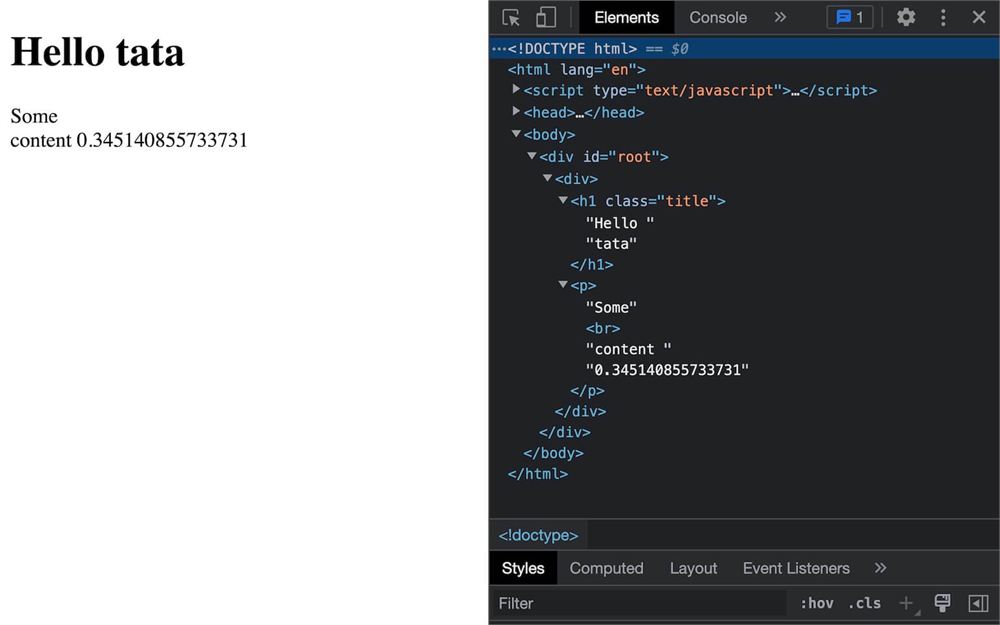
我们可以在 {...} 里注入变量并执行 JavaScript:
// ...

const toto = 'tata'

root.render(
    <div>
        <h1 className="title">Hello { toto }</h1>
        <p>Some<br />content { Math.random() }</p>
    </div>
)
但我们在 { 和 } 之间不能写任意 JavaScript。
下面是我们可以做的几个例子:
{ 1 + 1 }:做数学运算{ Date.now() }:调用返回值的 JavaScript 对象方法{ myFunction() }:调用返回值的自定义方法{ myFunction }:发送一个函数(该函数不会被调用,我们只是把它传过去){ () => {} }:发送一个我们即时创建的函数{ myArray.map(…) }:调用遍历数组并返回东西的方法{ 'random number :' + Math.random() }:拼接{ `random number : ${Math.random()}` }:用反引号拼接{ <h1>A title<h2> }:返回标签
下面是一些我们不能做的:
{ if(...) }{ for(...) }{ while(...) }
这些只是例子,让你有个概念。反正我们会把它付诸实践。
注释
注释有点棘手,因为我们必须打开和关闭 {...},然后创建一个 JS 块注释 /* ... */:
root.render(
    <div>
        {/* Some comment */}
        <h1 className="title">Hello { toto }</h1>
        <p>Some<br />content { Math.random() }</p>
    </div>
)
但大多数代码编辑器都支持 JSX,你的注释快捷键应该会帮你搞定。
样式
很酷,我们可以创建标签、注入变量和 JavaScript,但它看起来不好看。
我们如何加一些样式呢?
有多种方式可以做到。
用属性
我们可以直接写在 style 属性里。
首先,我们加上 style 属性,但不用 "",而是在 = 后面写 {}(这段代码会报错,我们需要在里面加东西):
<h1 style={ }>Hello React</h1>这是在属性里注入 JS 的方式。
对于 style 属性的情况,我们需要发送一个对象:
<h1 style={ { } }>Hello React</h1>加这么多 {} 可能感觉奇怪,但它有道理,你会习惯这种语法的。
我们现在可以给对象添加 CSS 属性,以及它们对应的字符串值:
<h1 style={ { color: 'coral', backgroundColor: 'floralwhite' } }>Hello React</h1>
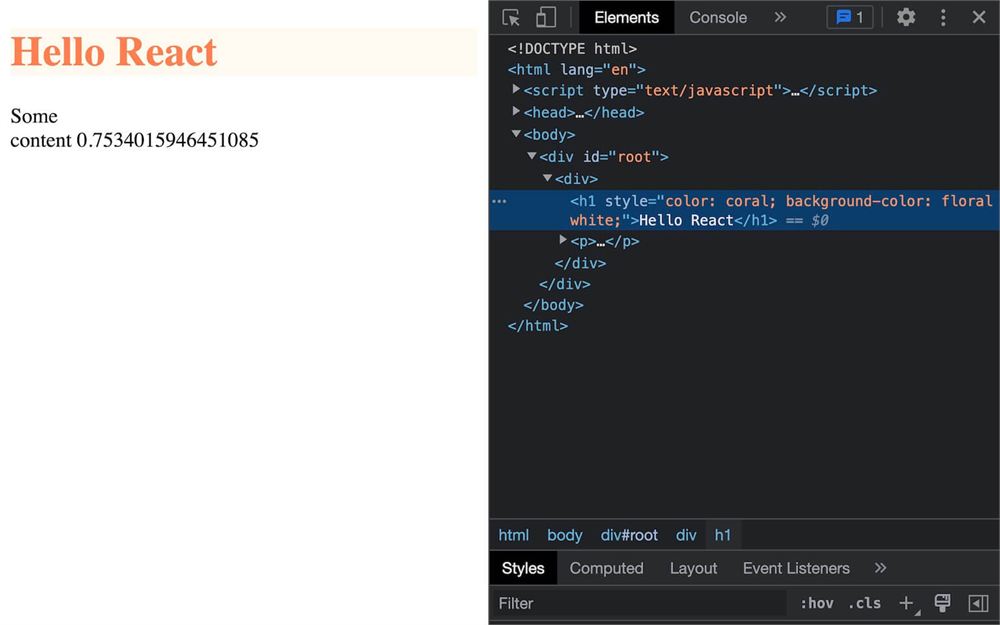
和在原生 JS 里一样,我们必须用 camelCase 写属性名。
注意,这就是开发者的编码习惯发挥作用的地方。我喜欢到处加很多空格,但 JS 里套 JSX、再套函数、再套其他东西可能会很乱,有些开发者喜欢把代码写得尽可能紧凑:
<h1 style={{ color: 'coral', backgroundColor: 'floralwhite' }}>Hello React</h1>甚至:
<h1 style={{color:'coral',backgroundColor:'floralwhite'}}>Hello React</h1>找到最适合你的写法由你决定。我唯一的建议是在整个项目里坚持一种写法。
如果我们的属性会随 JS 变化,把样式直接应用到元素上特别有用,但其他情况下就不太方便。
用 CSS 文件
更传统的添加样式的方式,是导入一个 CSS 文件,用标签定位元素,或者给它们加一个类。
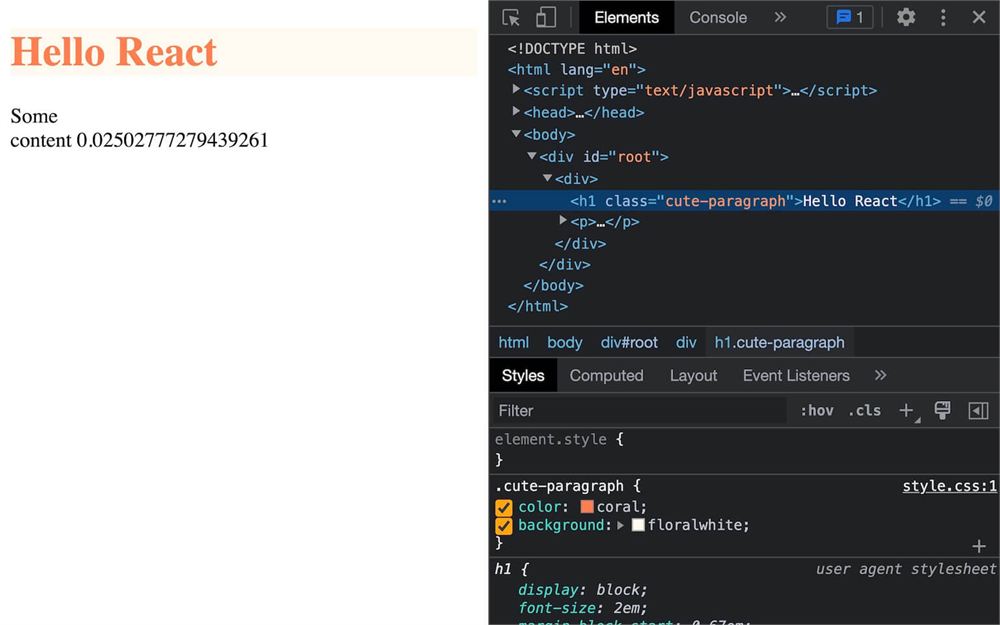
在 /src/ 里,创建一个 style.css 文件,内容如下:
.cute-paragraph
{
    color: coral;
    background: floralwhite;
}
用 className 给段落加这个类,替代 style 属性(记住我们不能用 class 关键字):
<h1 className="cute-paragraph">Hello React</h1>在 index.jsx 开头导入这个样式:
import './style.css'
用 CSS 框架
你也可以用 CSS 框架。其中一些与 React 集成得非常好,比如 Tailwind,但我们这里不打算讲这个,尤其是因为在接下来的课程里我们不需要写很多样式。
各用一点
你其实可以用我们前面提到的所有技巧。你可以用 CSS 框架来做大部分繁重的工作,加一个自定义 CSS 文件做特定调整,并用 style 属性处理注入的值。
这由你决定,也取决于什么最适合项目。
创建 App 组件
React 非常依赖我们所说的组件。
我们不想在 render() 方法调用里写一个庞大的应用。相反,我们想把应用拆分成多个小部分,既是为了分离一切,也是为了多次复用其中一些部分。
我们通常创建的第一个也是主要的组件叫 App 组件。它会有点像是主容器。
在 /src/ 里,创建一个 App.jsx 文件。
在那个文件里,创建一个 App 函数,并用 default 导出它:
export default function App()
{

}
如果你不熟悉导出(以及一般的模块),看看 Code structuring for bigger projects 那节课的开头。
在那个函数里,return 以下 JSX:
export default function App()
{
    return <h1>My Application</h1>
}
在 index.jsx 里导入它:
import App from './App.jsx'我们现在可以把它像标签一样加到 render() 里:
root.render(
    <div>
        <App></App>
    </div>
)
这里几乎没什么技巧。最初我们直接写了 <h1>...</h1>,而现在,我们写了一个会返回同样 <h1>...</h1> 的组件。
就这样,我们创建了第一个组件。
组件很有用,不仅是为了分离代码,也是为了复用它们:
root.render(
    <div>
        <App></App>
        <App></App>
        <App></App>
        <App></App>
    </div>
)
如果里面没有内容,我们可以自动闭合它:
root.render(
    <div>
        <App />
    </div>
)
如果你试图在开闭标签之间放内容,什么都不会发生(目前):
root.render(
    <div>
        <App>Where am I?</App>
    </div>
)
只要只有一个顶层组件,我们也可以去掉父级 <div>:
root.render(
    <App />
)
我们手动导入了 App 类,但我们也可以依靠 VSCode(或其他软件)的自动导入,直接在 JSX 里写这个组件:
root.render(
    <Ap // At this point, the software should propose you to import the component
)
自动导入时,VSCode 不总会写 .jsx 扩展名,因为 JavaScript 被视为默认。
加不加由你决定。
逻辑代码
回到 App.jsx,我们仍然可以在 return 之前在那个函数里写 JS:
export default function App()
{
    console.log('JS is still working')

    return <h1>My Application</h1>
}
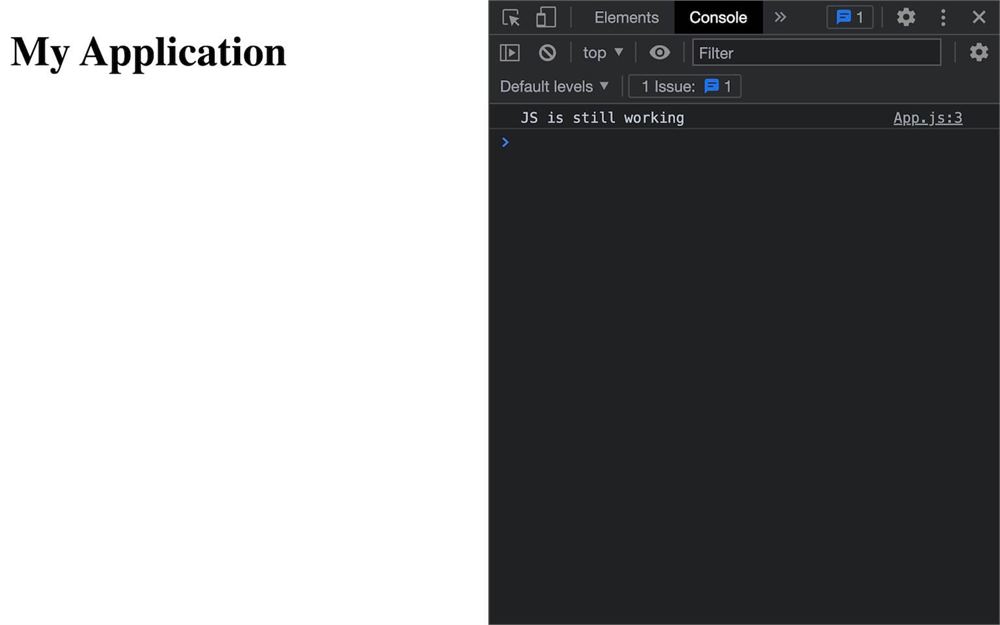
这很重要,因为这里就是我们将放入组件大部分逻辑的地方。我们可以获取数据、创建一些数组、做计算等等。
热模块重载
也许你注意到日志一直留在控制台里。
让我们通过替换你在 console.log 里写的内容来测试:
export default function App()
{
    console.log('And this is working too')

    return <h1>My Application</h1>
}
再来一次:
export default function App()
{
    console.log('What is happening?')

    return <h1>My Application</h1>
}
现在检查控制台:
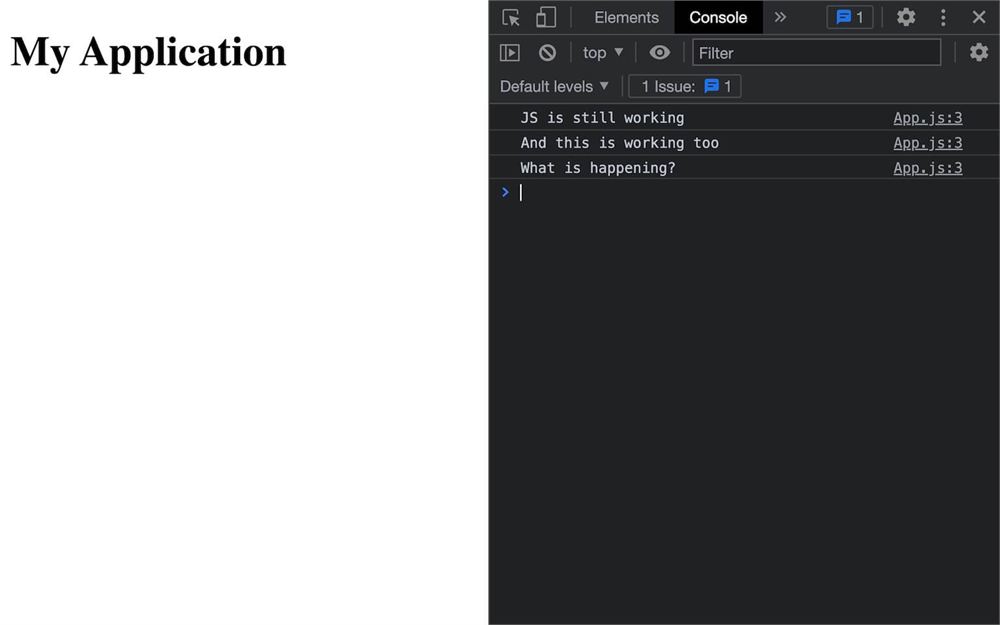
如你所见,日志是持久的,这不是开发者工具设置造成的。如果你重新加载页面,应该就能清掉这些日志。
真正的原因是 React 使用了我们所说的热模块重载(HMR),只重新实例化发生变化的部分,而不重新加载整个页面。
这很好,尤其是对于实例化需要时间的复杂应用,或者对于你需要走完才能看到正在处理的内容的长动画。
但有时它会有点小 bug,尤其是在像 Three.js 这样的复杂环境里。你仍然可以依赖它,但如果你觉得有哪里不对,也许给你的应用重新加载一下。或者用法语说,“dans le doute reboot”(存疑就重启)。
渲染
另一个需要理解的重要点是,每次 React 渲染我们的组件时,整个函数都会被调用。我们稍后会讲到 React 何时决定渲染组件,但它主要发生在数据变化时。
这并不意味着对应 JSX 的所有 DOM 元素都会被重新渲染。React 会在内存里保留先前的结构,并借助虚拟 DOM 只重新渲染需要重新渲染的部分(稍后详细讲)。
Clicker 组件
我们创建了名叫 App 的主组件。现在,让我们再创建一个。
我们要创建一个 Clicker 组件,它包含一个按钮和一个数字,点击按钮时数字会递增。
它没什么实际用处,但它是学习许多 React 特性的好机会。
现在是自己动手练习的好时机。试着创建一个 Clicker 组件,并把它用到 App 里。
让我们一起做。
创建组件
在 /src/ 里,创建一个 Clicker.jsx 文件。
创建一个 Clicker 函数,它 return 一个 <div>,并用 default 导出它:
export default function Clicker()
{
    return <div>
        Clicker
    </div>
}
在 App.jsx 里,导入 Clicker 并用它替换之前的内容:
import Clicker from './Clicker.jsx'

export default function App()
{
    return <>
        <Clicker />
    </>
}
更新 Clicker,显示一个 <button> 和点击次数:
export default function Clicker()
{
    return <div>
        <div>Clicks count: 0</div>
        <button>Click me</button>
    </div>
}
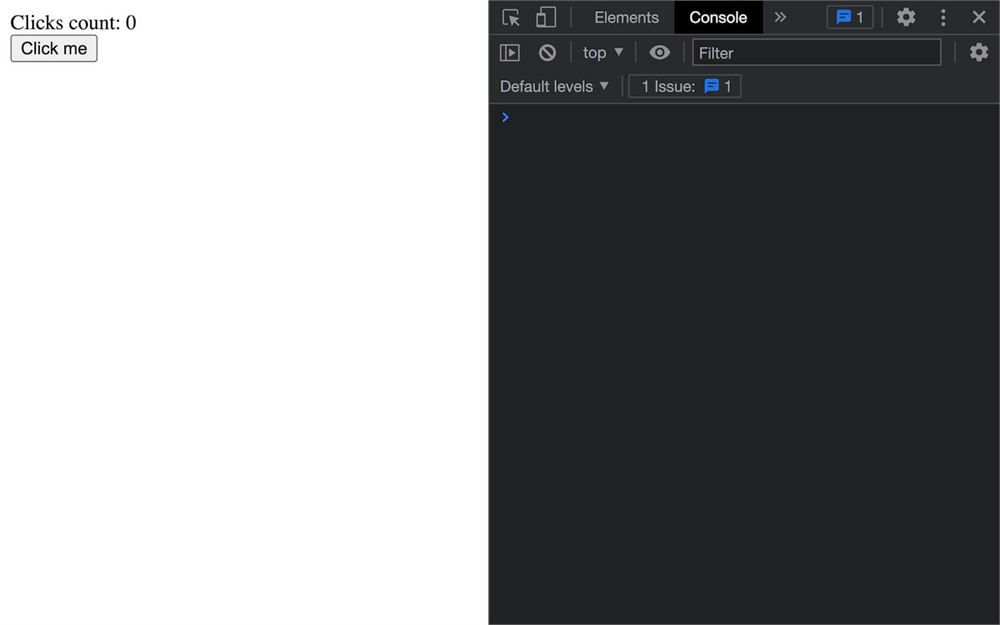
我们的 Clicker 组件准备好了,但点击按钮目前还什么都不会发生。
用 hook 和事件实现响应式数据
我们要用一个简单的 count 变量创建我们的第一个响应式数据。
为了学习,我们先做错的方式,然后再修正它。
第一个响应式数据
在 Clicker 函数里创建一个 count 变量,设为 0,并在 JSX 里显示它:
export default function Clicker()
{
    let count = 0

    return <div>
        <div>Clicks count: { count }</div>
        <button>Click me</button>
    </div>
}
我们得到同样的结果,但我们现在注入了一个变量。
我们现在想知道用户何时点击按钮,以便递增 count。
我们可以试试用 querySelector 加 addEventListener,但那会一团糟,尤其是考虑到 Clicker 函数每次数据变化时都会被调用。
那也不是 React 的做法。
解决方案其实非常简单。我们可以给 <button> 加一个 onClick 属性,并传给它一个函数。
首先,在 Clicker 里创建一个 buttonClick 函数:
export default function Clicker()
{
    let count = 0

    const buttonClick = () =>
    {
        console.log('Button has been clicked')
    }

    // ...
}
然后,在 <button> 上添加 onClick 属性,并把函数传给它:
export default function Clicker()
{
    // ...

    return <div>
        <div>Clicks count: { count }</div>
        <button onClick={ buttonClick }>Click me</button>
    </div>
}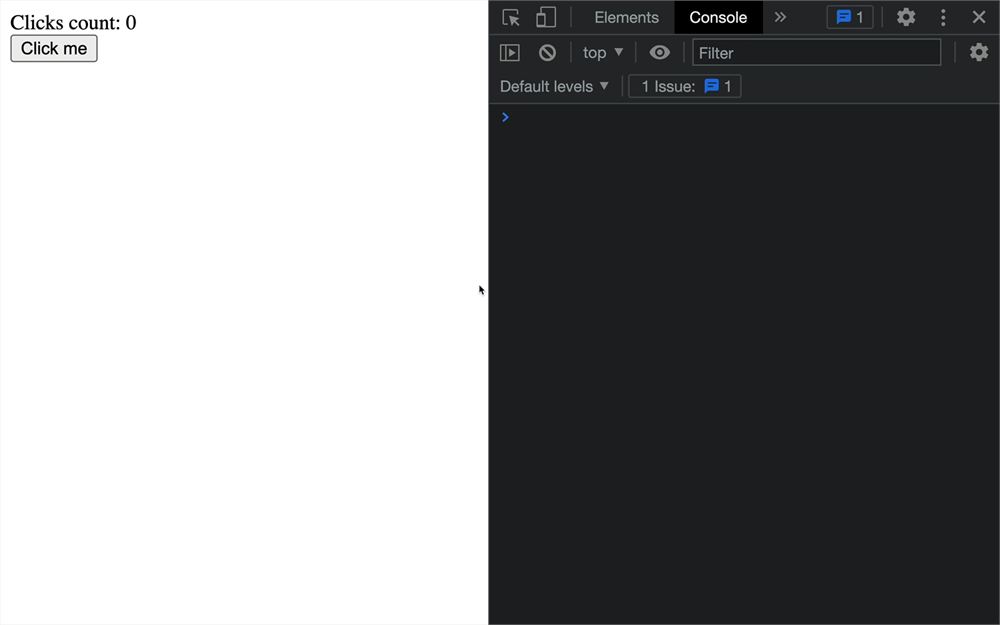
现在,当我们点击按钮时,我们的 buttonClick 函数会被调用,正如你在控制台里看到的那样。
我们也可以像这样直接传函数(别这么做):
export default function Clicker()
{
    let count = 0

    return <div>
        <div>Clicks count: { count }</div>
        <button onClick={ () => { console.log('Button has been clicked') } }>Click me</button>
    </div>
}
但为了可读性,我们还是用一个独立的函数。
我们用了 onClick,但如你所料,还支持许多不同的事件,你可以在这里找到它们 https://reactjs.org/docs/events.html#mouse-events
现在让我们犯个错,在函数里递增 count:
export default function Clicker()
{
    let count = 0

    const buttonClick = () =>
    {
        count++
    }

    // ...
}
虽然我们在递增 count,但应用里什么都没发生,可见的值还是 0。
这是因为我们的 Clicker 函数没有再被调用。
React 不知道有东西变了、组件需要重新渲染。
要修复那个,我们需要用“React”的方式来处理会变化的变量,我们要用一个 state。
useState hook
useState 就是我们所说的“hook”。它是我们在组件内部调用的一个函数,用来执行与该组件相关的特定任务。
有很多 hook,各做不同的事。
这里,useState 的任务是给我们提供一个变量和一个函数。当我们想改变这个变量时,我们不再重新赋值,而是用这个函数。
这个函数不只是改变变量,它还会提醒 React 该组件需要重新渲染,然后我们会看到新值神奇地出现。
我们来试试。
在 Clicker 里,从 react 导入 useState:
import { useState } from 'react'在 Clicker 函数开头,用我们想要的 count 初始值(在我们的情况里是 0)调用 useState,并把它打印出来看看里面是什么(先别删掉 count):
import { useState } from 'react'

export default function Clicker()
{
    const countState = useState(0)
    console.log(countState)

    let count = 0

    // ...
}
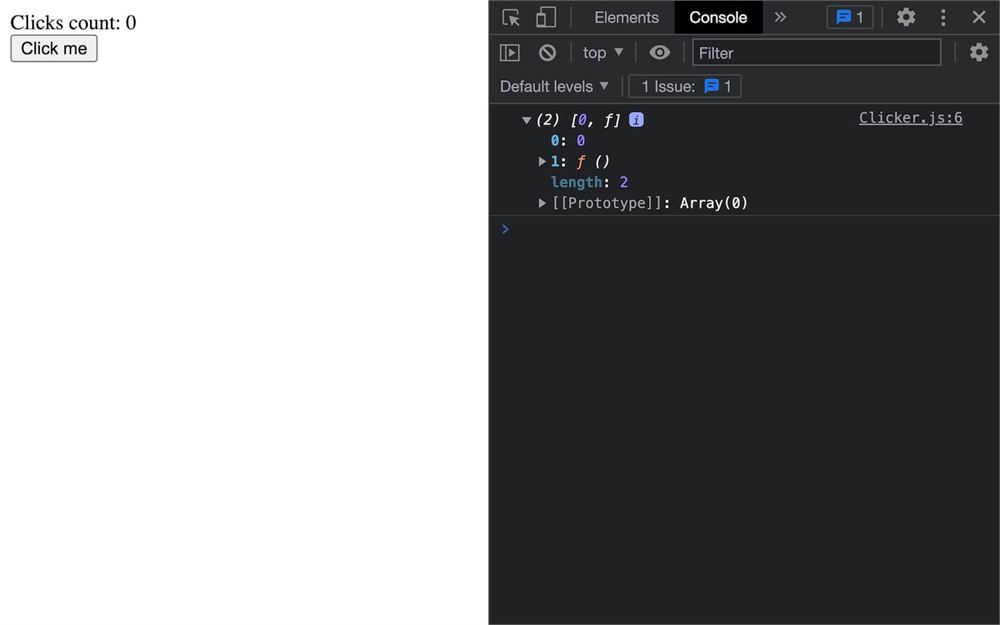
奇怪的是,我们得到一个数组,里面有初始值(0)和一个函数(也就是我们需要调用来更新值的那个函数)。
把 countState 数组的第一个值赋给一个 count 变量(删掉原来的 count 变量以避免冲突),把第二个值赋给一个 setCount 变量:
export default function Clicker()
{
    const countState = useState(0)
    const count = countState[0]
    const setCount = countState[1]

    // ...
}
现在,在 buttonClick 函数里,不要直接递增 count 变量,而是用 setCount 函数:
import { useState } from 'react'

export default function Clicker()
{
    const countState = useState(0)
    const count = countState[0]
    const setCount = countState[1]

    const buttonClick = () =>
    {
        setCount(count + 1)
    }

    // ...
}
就这样!当你点击 <button> 时,你的 UI 会自动更新。整个 Clicker 函数会被调用,但 React 只会更新发生变化的部分。
注意,写 count + 1 并不会直接更新 count 变量。我们只是把这个运算的结果发送给 setCount,并没有改变原来的变量。
顺便说一句,还有另一种调用 setCount(以及任何“setter”函数)的方式,就是给它发送一个函数(先别保存):
setCount(() => {})这个函数会被调用,当前的状态值会作为参数传进去:
setCount((value) => {})然后我们可以用这个 value 来 return 我们想要的任何东西(在我们的情况里是 value + 1):
setCount((value) => { return value + 1 })既然我们用的是以 return 作为唯一语句的箭头函数,我们可以这样写:
setCount(value => value + 1)这会得到完全相同的行为,那为什么还要麻烦用它呢?
这个技巧能确保我们使用的是最新的状态值,在我们的情况里没用,但如果你做异步操作就非常重要。举个例子,如果你试图用 setTimeout 在几秒后做这件事,当 setCount 被调用时状态可能已经变了。
但这是很罕见的情况。
让我们回到之前那个 setCount 调用:
setCount(count + 1)使用 useState 时必须创建 3 个变量(countState、count、setCount)有点长,但有个更好的方式,而且它实际上解释了为什么它是个数组。
我们可以把数组解构到变量里:
export default function Clicker()
{
    const [ count, setCount ] = useState(0)

    const buttonClick = () =>
    {
        setCount(count + 1)
    }

    // ...
}
这会让我们得到的 count 和 setCount 变量都包含和之前一样的东西。
解构在 React 里用得很多,它也适用于对象,我们稍后会看到。
用 useEffect hook 保存到 localStorage
接下来,我们想保存这个值,这样当我们关闭标签页再打开时,能保留这个值。
在 JavaScript 里,我们可以访问一个叫 localStorage 的 API,它让我们以键和值的形式在本地保存数据。
我们想在组件第一次渲染时从 localStorage 取出那个值,并在它变化时更新 localStorage 里的值。
我们需要一种在组件第一次渲染时执行指令的方式,以及一种在组件再次渲染时执行指令的方式。两者都可以用 useEffect hook 完成。
首先,在 Clicker.jsx 里,从 react 导入 useEffect:
import { useEffect, useState } from 'react'在 useState 之后立即调用它,并传给它一个里面带 console.log() 的函数:
export default function Clicker()
{
    const [ count, setCount ] = useState(0)

    useEffect(() =>
    {
        console.log('hello')
    })

    // ...
}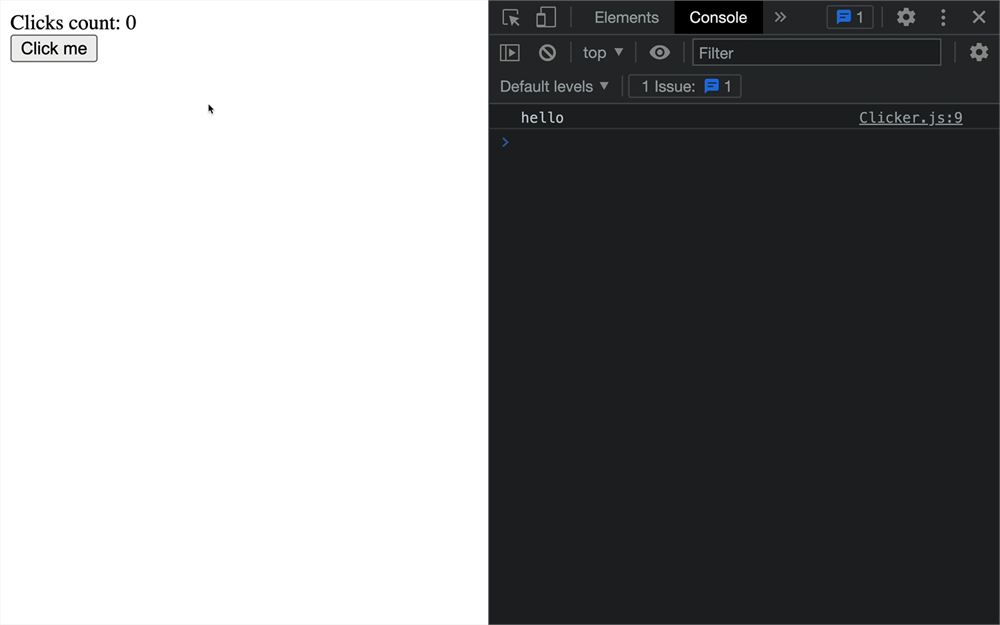
日志会在组件第一次渲染时出现一次,但也会在每次变化后(当我们点击按钮时)出现。
为了更好地控制 useEffect 何时被调用,我们可以把依赖项数组作为第二个参数传给它。
如果那个依赖项数组是空的,我们的函数只会在第一次渲染时被调用:
useEffect(() =>
{
    console.log('First render')
}, [])
但我们也可以指定我们想观察的变量:
useEffect(() =>
{
    console.log('Count changed')
}, [ count ])
这里,函数只会在 count 变化时被调用。
这给了我们和不加任何依赖项调用 useEffect 一样的结果,因为我们唯一的变量就是 count,但如果你开始在同一个组件里有多个变量,它就会变得有趣。
保存到 localStorage
我们就保持这样,这样每当 count 变化时我们就负责保存到 localStorage。
在 useEffect 里,我们要用 setItem 方法把 count 保存到 localStorage。
setItem 需要一个键和一个值:
useEffect(() =>
{
    localStorage.setItem('count', count)
}, [ count ])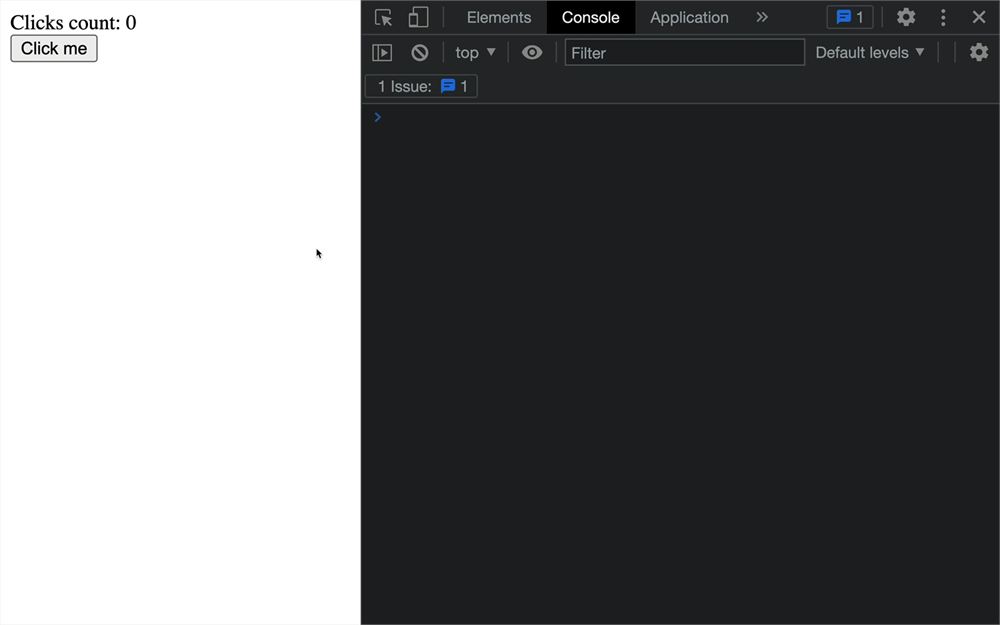
每当值变化时把 count 保存到 localStorage,这就是我们需要的全部。
我们不打算深入讲解 localStorage API 的细节,它相当简单,你可以在这里了解更多 https://developer.mozilla.org/en-US/docs/Web/API/Window/localStorage。
在开发者工具里,你可以在 Application 标签页检查这个值。
从 localStorage 获取
现在数据已经保存了,我们想在组件第一次渲染时(打开页面时)取回它。
要做到这一点,我们用另一个 useEffect,但依赖项是一个空数组。
再次调用 useEffect(在第一个之前),第二个参数是空数组:
export default function Clicker()
{
    // ...

    useEffect(() =>
    {
        console.log('First render')
    }, [])

    useEffect(() =>
    {
        // ...
    }, [ count ])

    // ...
}
记住,设一个空数组会导致函数只在组件的第一次渲染时被调用。
这里,我们可以用 getItem() 方法从 localStorage 取回变量:
useEffect(() =>
{
    const savedCount = localStorage.getItem('count')
    console.log(savedCount)
}, [])
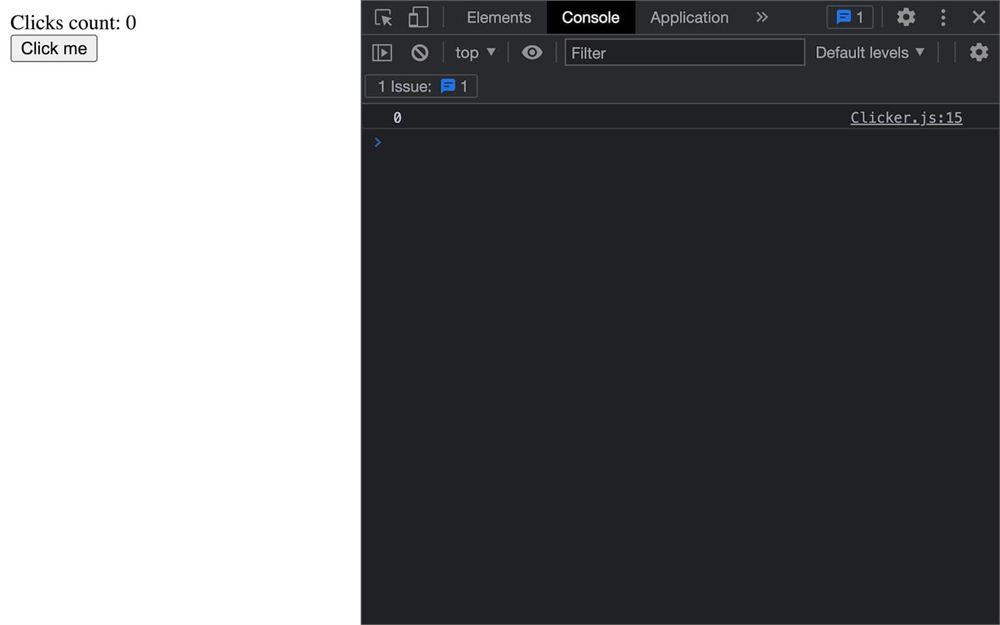
不幸的是,我们不能按原样使用这个变量,需要做一些加工。
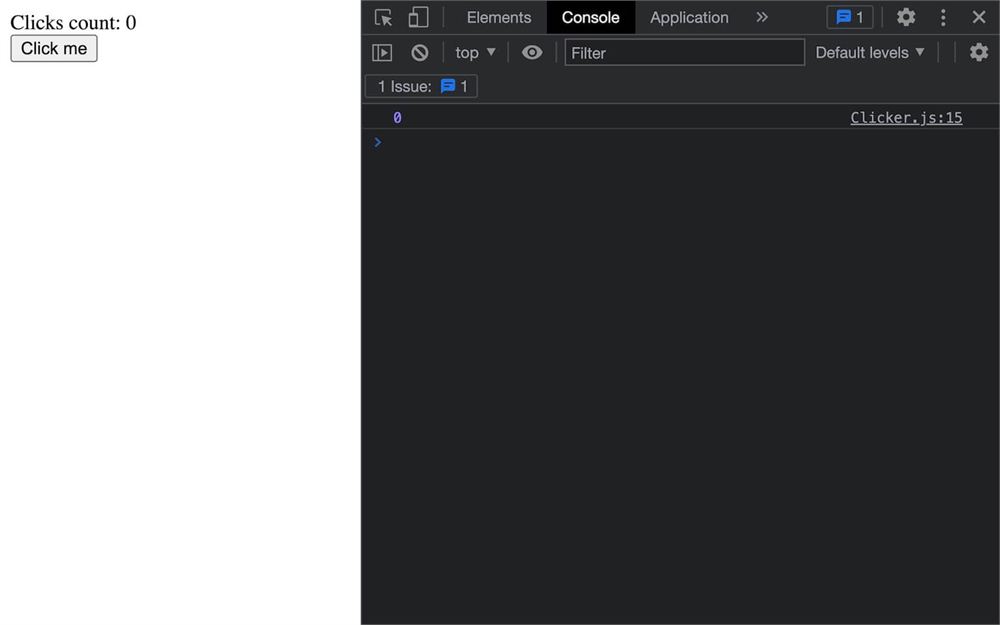
首先,localStorage 只保存并返回字符串数据。如果你发送的不是字符串,它会被自动转换。
我们可以用 parseInt() 把它转换成数字:
useEffect(() =>
{
    const savedCount = parseInt(localStorage.getItem('count'))
    console.log(savedCount)
}, [])
其次,如果用户第一次打开应用,localStorage 里将没有数据,而 savedCount 会变成 NaN(非数字),因为我们对 null 做了 parseInt()。
你可以通过在开发者工具里删除 localStorage 数据来测试:
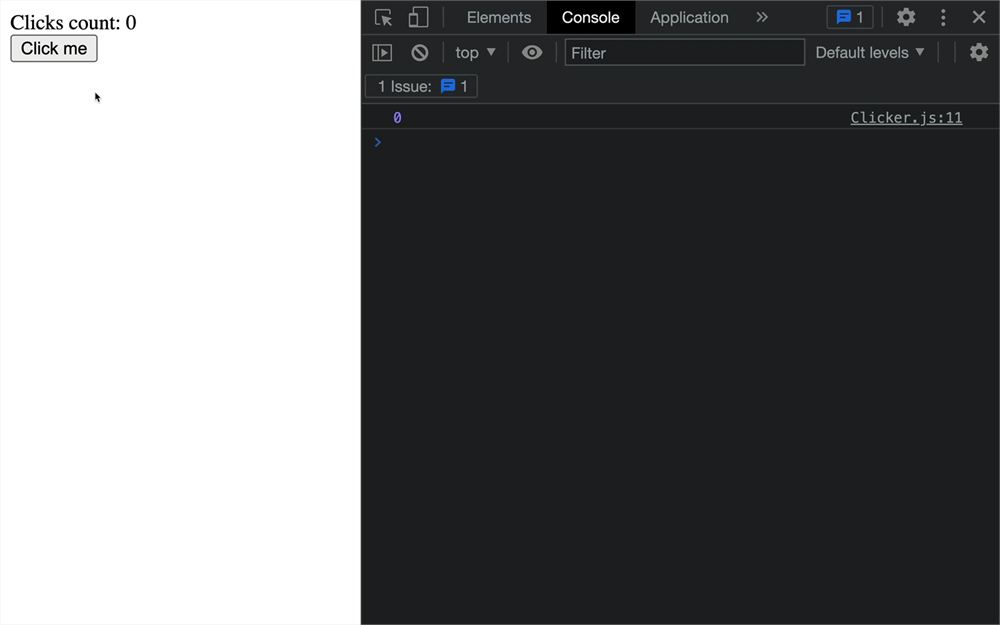
我们可以通过颠倒两个 useEffect 的顺序来修复,但那既傻又脆弱。
取而代之,我们会在 parseInt() 里用空值合并运算符(??)测试这个变量,如果不正常就返回 0:
useEffect(() =>
    {
        const savedCount = parseInt(localStorage.getItem('count') ?? 0)
        console.log(savedCount)
    }, [])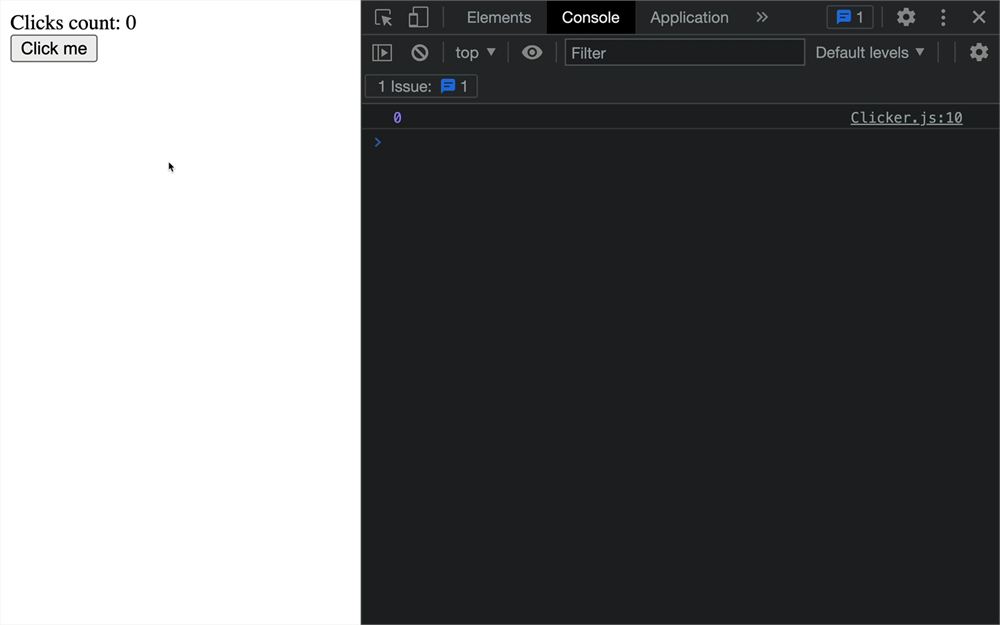
如果 localStorage.getItem('count') 是 null 或 undefined,空值合并运算符会返回 0。
现在,我们可以用 setCount 更新我们的 state:
useEffect(() =>
    {
        const savedCount = parseInt(localStorage.getItem('count') ?? 0)
        setCount(savedCount)
    }, [])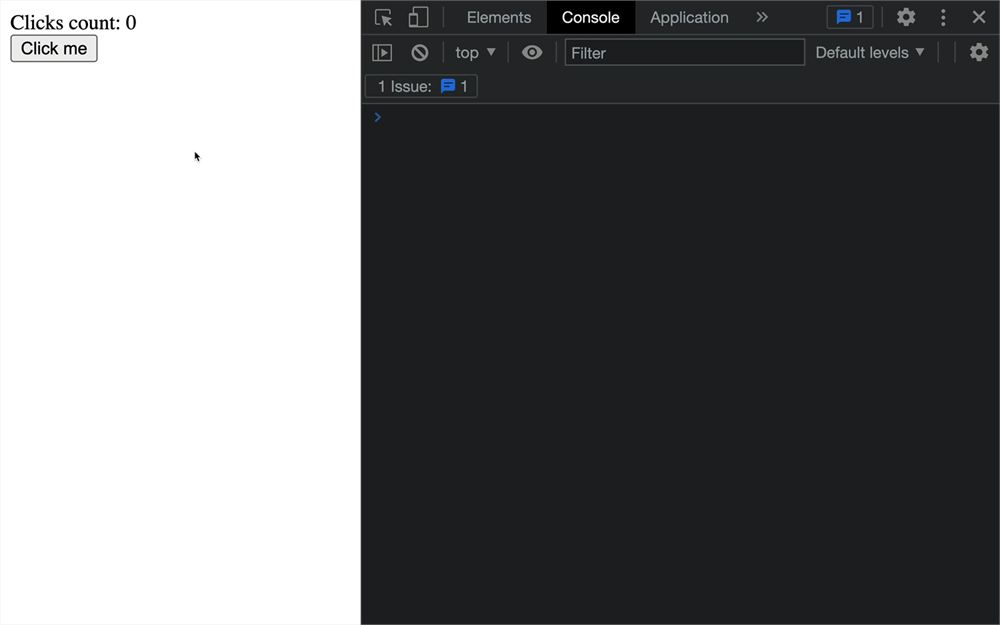
点击按钮几次,重新加载页面,你会注意到这个值被妥善保存并恢复了。
接下来,我们要看看当组件被销毁(或“释放”)时如何清空 localStorage。要做到这一点,我们需要一种销毁该组件的方式。
但首先,我们需要做一些修正。
修正渲染
用带空依赖项数组的 useEffect 在第一次绘制时执行一些指令是可以的,但这里有个小问题。
要测试它,在组件里任意位置加一个 console.log():
export default function Clicker()
{
    console.log('render')

    // ...
}
然后,点击按钮几次以确保你在 localStorage 里保存了一个值,最后,重新加载页面:
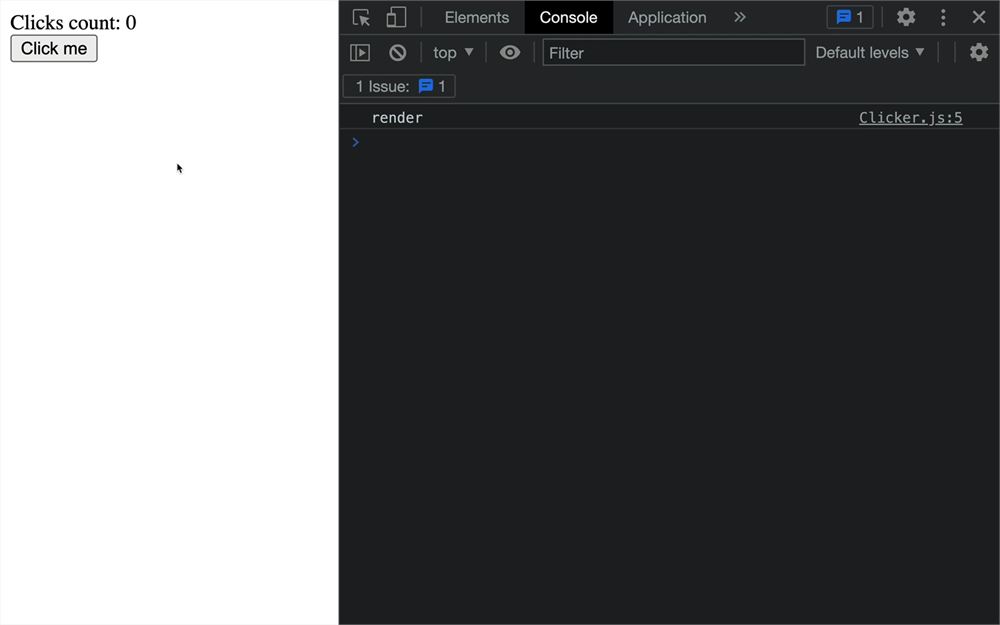
看起来我们得到了两次渲染。原因很合乎逻辑。第一次渲染时 count 的初始状态是 0,然后在第一次渲染之后,我们调用 setCount 把 localStorage 里的值放进去。数据变了,所以组件必须重新渲染。
虽然这不是什么大问题,但尽量减少渲染是好习惯,所以我们要修复它。
修复其实很简单。不要把 count 的初始值设为 0,而是用我们之前写的完全相同的指令从 localStorage 取回它:
export default function Clicker()
{
    console.log('render')
    const [ count, setCount ] = useState(parseInt(localStorage.getItem('count') ?? 0))

    // ...
}
我们也可以移除 useEffect 里的内容,但保留 useEffect 调用,因为后面会用到它:
export default function Clicker()
{
    console.log('render')
    const [ count, setCount ] = useState(parseInt(localStorage.getItem('count') ?? 0))

    useEffect(() =>
    {
    }, [])
}
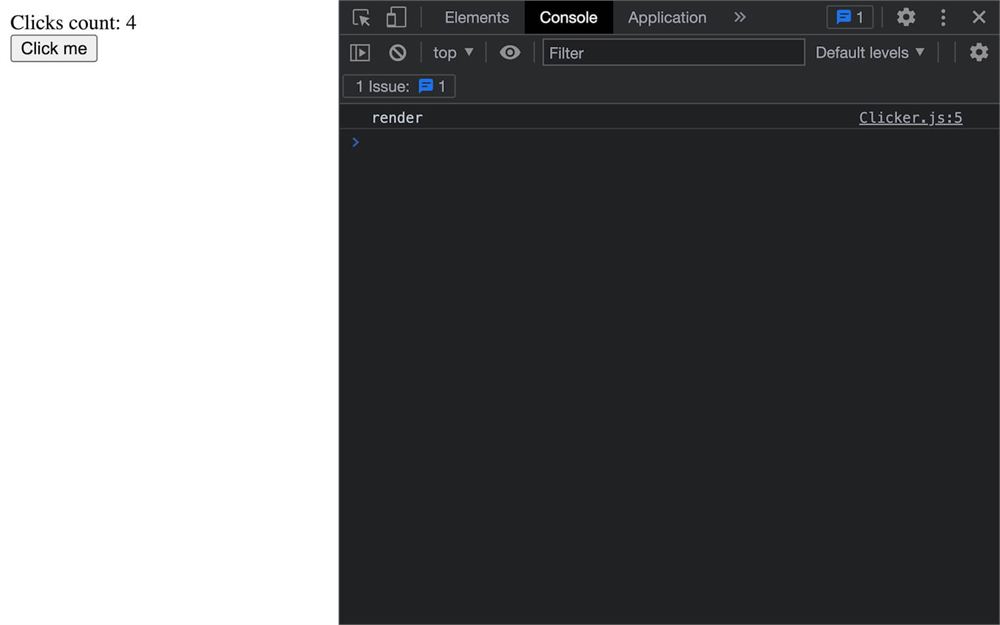
正如你在控制台里看到的,我们只得到一次渲染。
删掉 console.log('render')。
我们本可以从一开始就这样设,但我想让你先看到 useEffect 的不同用法。
让 clicker 可切换
在 App 组件里,我们要创建一个按钮,用来切换整个 Clicker 组件。
首先,我们需要一个变量来表示 <Clicker> 是否可见,我们要用 useState,因为这是一个应该会变化的数据,我们希望根据这个数据重新渲染组件。
在 App.jsx 里,从 react 导入 useState:
import { useState } from 'react'在 App 函数里,用 useState 创建 hasClicker 和 setHasClicker 变量:
export default function App()
{
    const [ hasClicker, setHasClicker ] = useState(true)

    return <>
        <Clicker />
    </>
}
现在,创建一个 <button>,当用户点击它时,反转 hasClicker。
现在是自己动手试试的好时机。
让我们一起做。
创建一个 <button>:
export default function App()
{
    // ...

    return <>
        <button>Toggle clicker</button>
        <Clicker />
    </>
}

创建一个 toggleClickerClick 函数,它会在按钮被点击时调用,并在其中用 setHasClicker() 函数发送 hasClicker 的反值:
export default function App()
{
    // ...

    const toggleClickerClick = () =>
    {
        setHasClicker(!hasClicker)
    }

    // ...
}
把这个函数发送到 <button> 的 onClick 属性:
export default function App()
{
    const [ hasClicker, setHasClicker ] = useState(true)

    const toggleClickerClick = () =>
    {
        setHasClicker(!hasClicker)
    }

    return <>
        <button onClick={ toggleClickerClick }>Toggle clicker</button>
        <Clicker />
    </>
}
现在,我们希望组件对这个 state 做出反应。
首先,让我们更改按钮里的文字,写成 Show Clicker 或 Hide Clicker。
记住我们不能在 JSX 里用 if,但我们可以在 {} 之间用三元条件:
export default function App()
{
    // ...

    return <>
        <button onClick={ toggleClickerClick }>{ hasClicker ? 'Hide' : 'Show' } Clicker</button>
        <Clicker />
    </>
}
现在,文字变了,但我们还想让 Clicker 也切换。
同样,我们不能用 if,但三元条件仍然是可行的方案:
export default function App()
{
    // ...

    return <>
        <button onClick={ toggleClickerClick }>{ hasClicker ? 'Hide' : 'Show' } Clicker</button>
        { hasClicker ? <Clicker /> : null }
    </>
}
虽然看起来可能怪,但我们在三元条件的结果里放了一个组件,而这个结果在 { … } 里。
注意,如果结果是 null,什么都不会显示。
我们的 Clicker 切换起作用了,但除了三元条件,我们还可以用 && 技巧:
export default function App()
{
    // ...

    return <>
        <button onClick={ toggleClickerClick }>{ hasClicker ? 'Hide' : 'Show' } Clicker</button>
        { hasClicker && <Clicker /> }
    </>
}
JavaScript 处理 && 时会先检查左边部分。
- 如果左边是
true,它会接着检查右边并返回它。 - 如果左边是
false,它连右边都不会去检查。
我们现在可以随意销毁和创建 Clicker 组件。
销毁 localStorage 数据
当 Clicker 被销毁时,我们想删除 localStorage 数据。
要做到这一点,我们给带 [] 依赖项(在第一次渲染时被调用的那个)的 useEffect 加一个 return。
在 Clicker 里我们留空的那个 useEffect 里,return 一个函数:
export default function Clicker()
{
    // ...

    useEffect(() =>
    {
        return () =>
        {
            console.log('Disposing')
        }
    }, [])

    // ...
}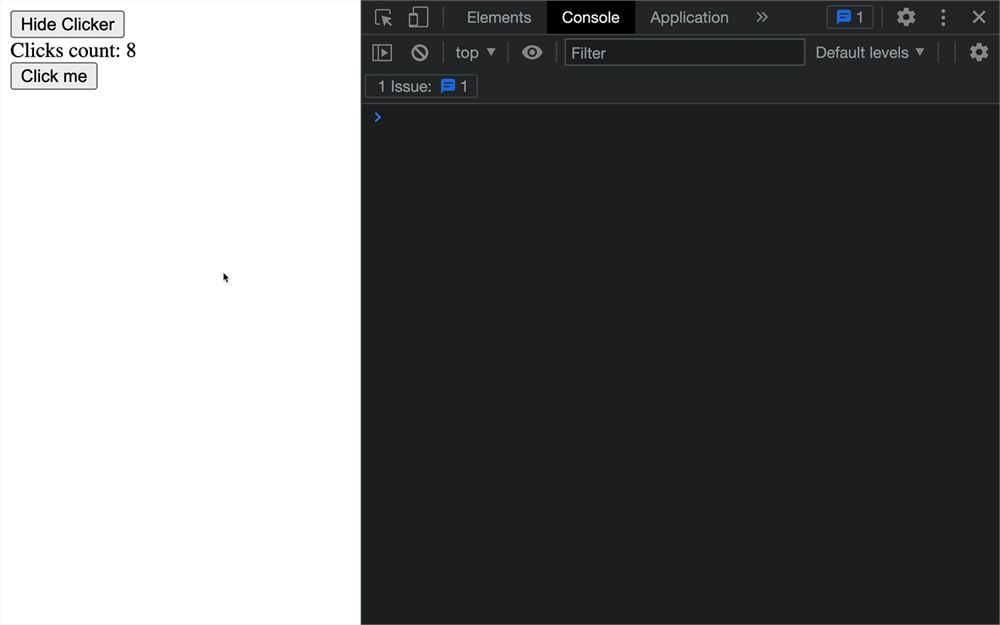
这就是提供指令的方式,React 会在组件被释放时调用它们。
在这个函数里,我们可以用 removeItem() 方法从 localStorage 移除数据:
export default function Clicker()
{
    // ...

    useEffect(() =>
    {
        return () =>
        {
            localStorage.removeItem('count')
        }
    }, [])

    // ...
}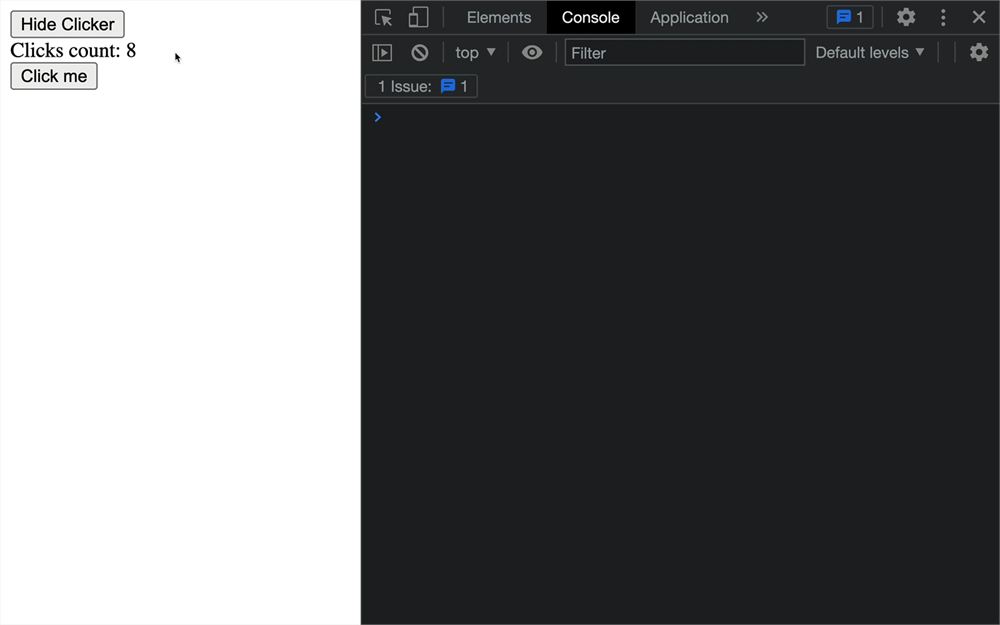
通过点击 <button> 移除 Clicker,并检查 localStorage 里的数据是否已被清空。
Props
在这部分,我们要聊聊我们所说的“props”。但首先,让我们把东西准备好。
多个 Clicker
创建多个 Clickers:
export default function App()
{
    // ...

    return <>
        <button onClick={ toggleClickerClick }>{ hasClicker ? 'Hide' : 'Show' } Clicker</button>
        { hasClicker && <Clicker /> }
        { hasClicker && <Clicker /> }
        { hasClicker && <Clicker /> }
    </>
}
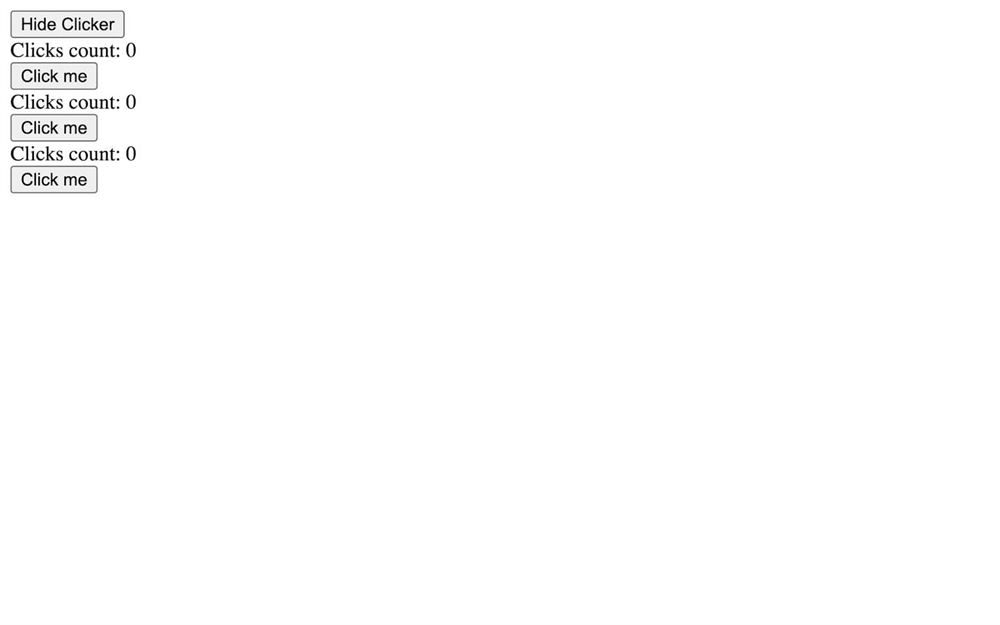
我们只是复制了这一行,但我们本可以用一个 fragment <></> 把 3 个 clicker 放在一起:
export default function App()
{
    // ...

    return <>
        <button onClick={ toggleClickerClick }>{ hasClicker ? 'Hide' : 'Show' } Clicker</button>
        { hasClicker && <><Clicker /><Clicker /><Clicker /></> }
    </>
}
我们也可以加换行让它更可读(很快就会变得有用):
export default function App()
{
    // ...

    return <>
        <button onClick={ toggleClickerClick }>{ hasClicker ? 'Hide' : 'Show' } Clicker</button>
        { hasClicker && <>
            <Clicker />
            <Clicker />
            <Clicker />
        </> }
    </>
}
如何写代码最好由你决定,但既然我们要给 Clickers 加一些属性,就把它们放在多行上。
一切似乎都正常工作,但如果你试着点击按钮来增加计数再重新加载,你会看到值不对:

问题出在 localStorage,因为我们把所有 clicker 保存和更新到同一个名为 'count' 的键里。我们需要一种方式,给每个 Clicker 发送不同的键。
要做到这一点,我们可以用 React 里所说的“props”。
props 是组件的属性,可以用属性来设置。只要不是保留关键字,你想用什么属性都行。
这里,我们要用 keyName 属性,因为 key 是保留关键字(我们稍后会发现)。
给每个 Clicker 加一个不同的 keyName 属性,并给每个选一个不同的名字:
export default function App()
{
    // ...

    return <>
        <button onClick={ toggleClickerClick }>{ hasClicker ? 'Hide' : 'Show' } Clicker</button>
        { hasClicker && <>
            <Clicker keyName="countA" />
            <Clicker keyName="countB" />
            <Clicker keyName="countC" />
        </> }
    </>
}
现在,要在 Clicker 组件里取回那个 prop,我们需要给函数加一个参数:
export default function Clicker(props)
{
    console.log(props.keyName)

    // ...
}
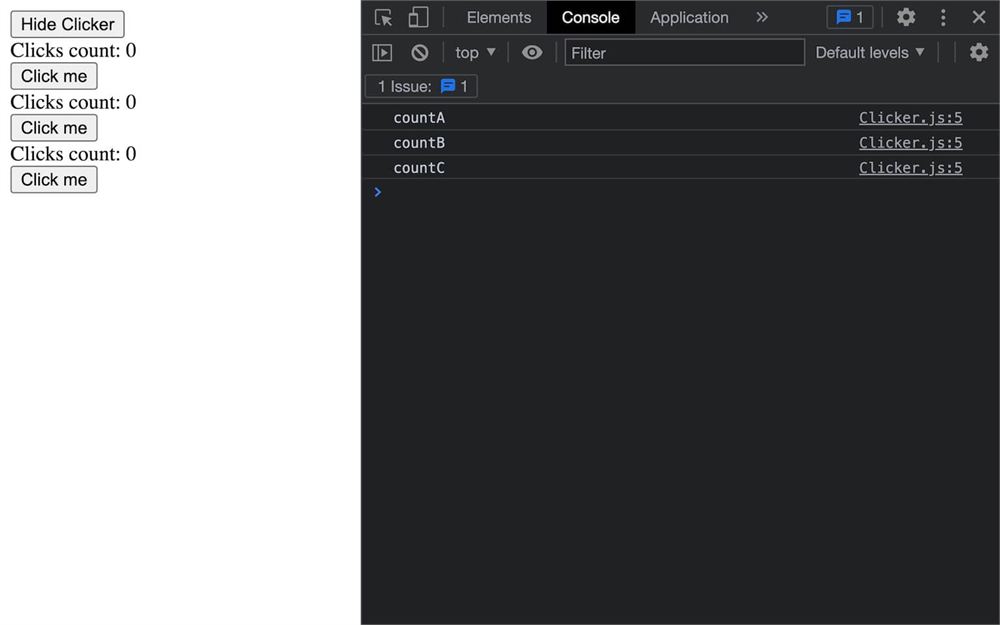
props 是一个对象,它包含以发送给组件的属性命名的属性(在我们的情况里是 keyName)。
注意,如果你喜欢用 key-name 这样的 dash-case 属性,可以用 props['key-name'] 取回它,但不推荐这样做,我们马上就会发现原因。
更快取回 props 的方式是在函数参数里直接解构它们:
export default function Clicker({ keyName })
{
    console.log(keyName)

    // ...
}
这和我们之前解构 state 数组的方式非常相似,但这里针对的是对象。
我们现在可以用它作为 getItem()、removeItem() 和 setItem() 的 localStorage 键,替代 'count':
export default function Clicker({ keyName })
{
    const [ count, setCount ] = useState(parseInt(localStorage.getItem(keyName) ?? 0))

    useEffect(() =>
    {
        return () =>
        {
            localStorage.removeItem(keyName)
        }
    }, [])

    useEffect(() =>
    {
        localStorage.setItem(keyName, count)
    }, [ count ])

    // ...
}
不同的文字颜色
让我们通过给每个 Clicker 文字设置不同颜色,再多练习一下 props。
如果你有兴趣,现在是自己动手试试的好时机。
让我们一起做。
给每个 Clicker 发送一个 color 属性:
export default function App()
{
    // ...

    return <>
        <button onClick={ toggleClickerClick }>{ hasClicker ? 'Hide' : 'Show' } Clicker</button>
        { hasClicker && <>
            <Clicker keyName="countA" color="crimson" />
            <Clicker keyName="countB" color="chocolate" />
            <Clicker keyName="countC" color="darkOrchid" />
        </> }
    </>
}
在 Clicker 里取回 color prop:
export default function Clicker({ keyName, color })
{
    // ...
}
用 style 属性把它应用到 <div> 上,别忘了需要给它发送一个对象:
export default function Clicker({ keyName, color })
{
    // ...

    return <div>
        <div style={ { color: color } }>Clicks count: { count }</div>
        <button onClick={ buttonClick }>Click me</button>
    </div>
}
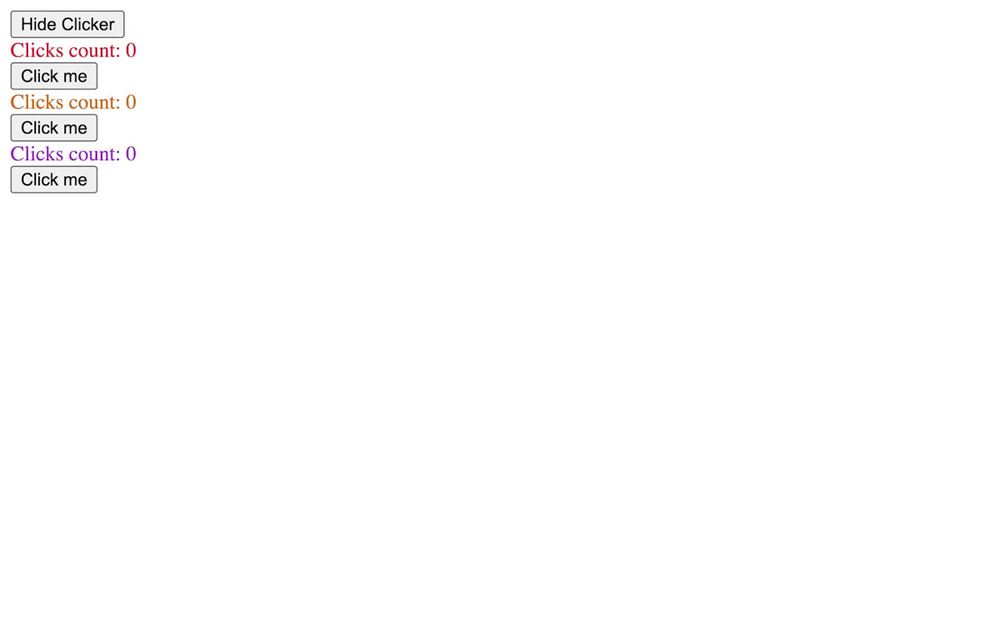
顺便说一句,在 JavaScript 里,当属性名和值相同时,我们不必同时写键和值:
<div style={ { color } }>Clicks count: { count }</div>让我们更进一步,发送一个随机颜色。
在 CSS 里,要创建随机颜色,我们可以用十六进制或 RGB 格式,但用 HSL 格式更好。
HSL 由三个值组成:
- Hue(色相):一个从
0deg到360deg的角度。在0deg时是红色,在360deg时又是红色,但它走过了彩虹里每一种可能的颜色。我们其实可以超过360deg,它会一直循环所有颜色。 - Saturation(饱和度):颜色饱和度,从
0%到100%。当它是0%时没有颜色,只有灰色。当它是100%时,它是饱和的,我们得到鲜艳的颜色。 - Lightness(亮度):亮度,从
0%到100%。当它是0%时,是黑色。当它是100%时,是白色。当它是50%时,我们得到未被改变的颜色。举个例子,70%的亮度会让颜色看起来更粉彩一些,因为我们给它加了白色。
我们要选一个固定的 saturation 为 100% 和一个固定的 lightness 为 70%,但让 hue 从 0deg 到 360deg 随机。
因为 hue 会变化,我们需要拼接它。
做拼接的一个好方式是用反引号 ``(或模板字面量),而不是通常的 +。
在任意日志里试试:
console.log(`hsl(${ Math.random() * 360 }deg, 100%, 70%)`)
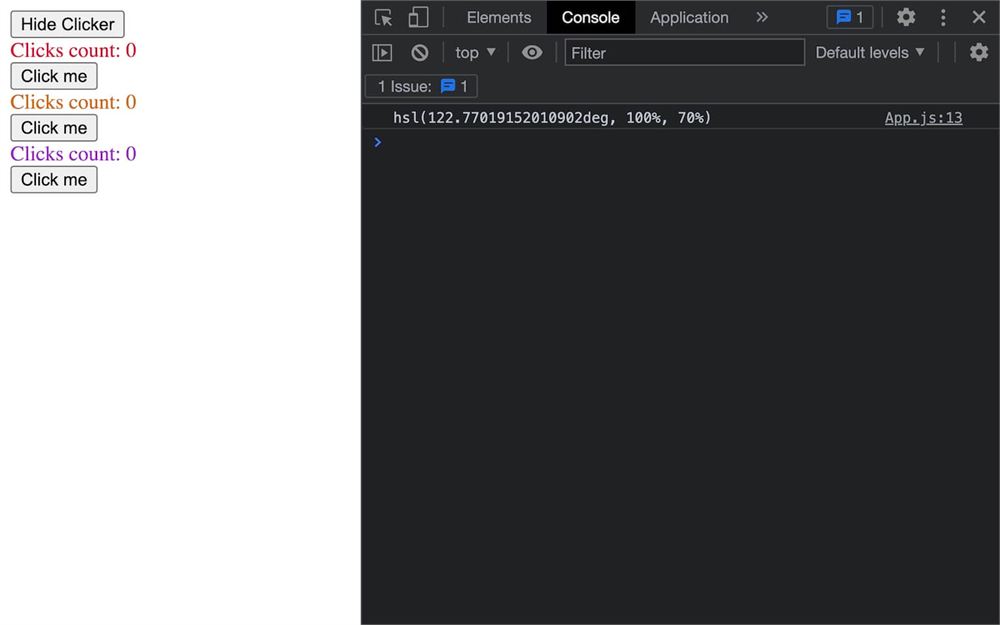
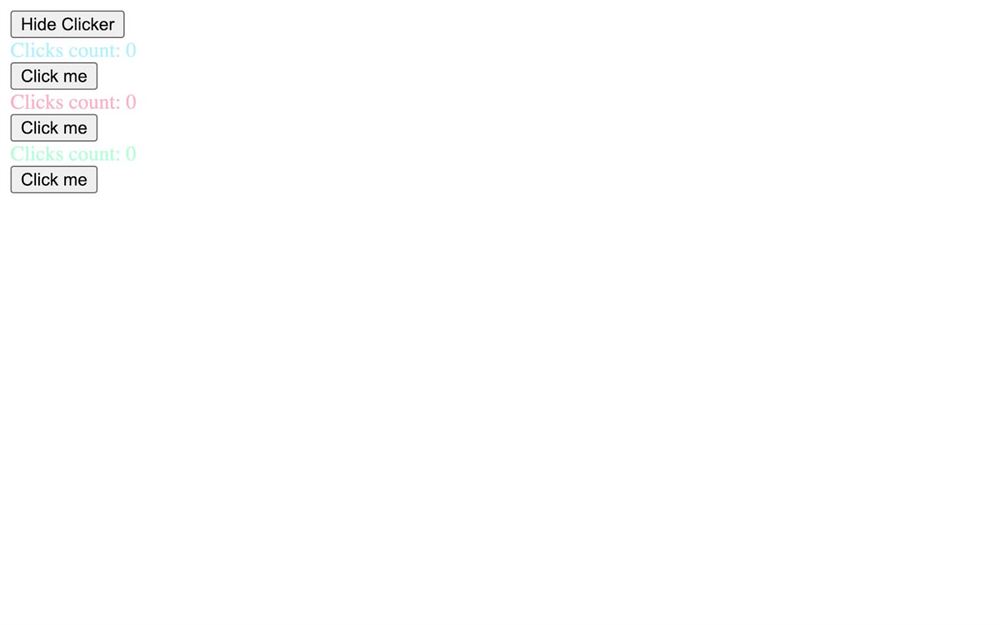
让我们把这个值发送给每个 Clicker 的 color 属性:
export default function App()
{
    // ...

    return <>
        <button onClick={ toggleClickerClick }>{ hasClicker ? 'Hide' : 'Show' } Clicker</button>
        { hasClicker && <>
            <Clicker keyName="countA" color={ `hsl(${ Math.random() * 360 }deg, 100%, 70%)` } />
            <Clicker keyName="countB" color={ `hsl(${ Math.random() * 360 }deg, 100%, 70%)` } />
            <Clicker keyName="countC" color={ `hsl(${ Math.random() * 360 }deg, 100%, 70%)` } />
        </> }
    </>
}
children prop
有一个特殊的 prop 叫 children。
目前,我们的 App 是这样写的:
<App />但我们可以这样写:
<App></App>这样做让我们能在里面写更多东西:
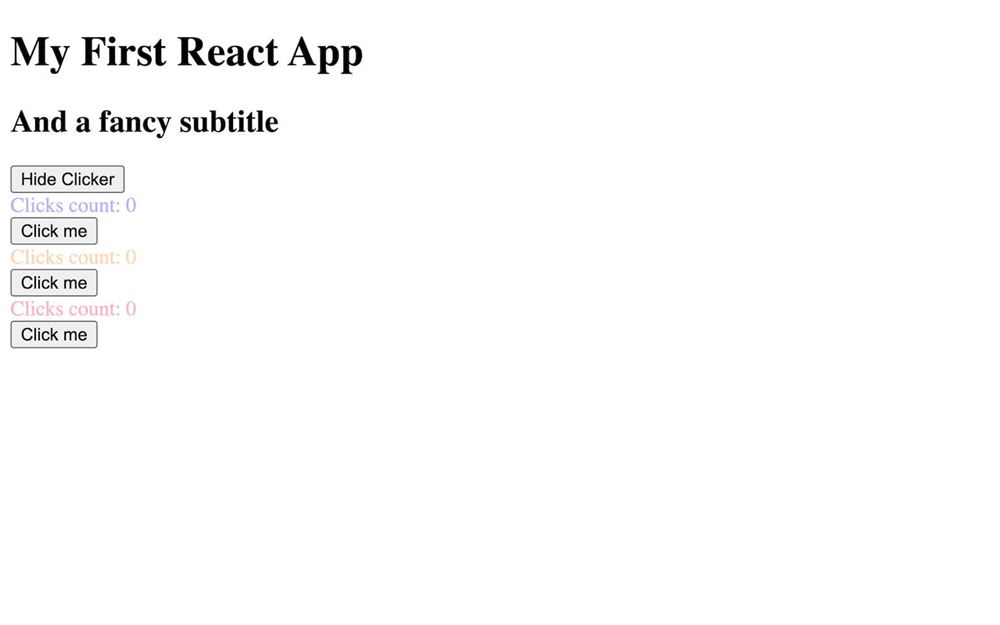
<App>My First React App</App>甚至更复杂的、带标签或其他组件的 JSX:
<App>
    <h1>My First React App</h1>
    <h2>And a fancy subtitle</h2>
</App>
但这样做最后似乎什么都不会变,我们放进去的内容丢了。
因为我们需要手动取回那些内容,并把它显示在我们想要的任何地方。
在 App.jsx 里取回 children prop:
export default function App({ children })
{
    // ...
}
并在 return 里、其余内容之前显示它:
export default function App({ children })
{
    // ...

    return <>
        { children }

        {/* ... */}
    </>
}
把数据向上移动
我们有多个 Clickers,每个都有自己的计数。我们想要一个全局计数。
当按下任何一个 clicker 的按钮时,我们希望那个全局计数递增。
我们要在 App 里显示那个值,因为它在 Clickers 之上。在某种意义上,我们想把数据从组件(Clicker)向上移动到它的父级(App)。
在 React 里,我们称之为“Lifting State Up”(状态提升)。
创建 state
首先,在 App 里,我们需要用 useState 创建一个 count state,并把它初始化为 0:
export default function App({ children })
{
    const [ hasClicker, setHasClicker ] = useState(true)
    const [ count, setCount ] = useState(0)

    // ...
}
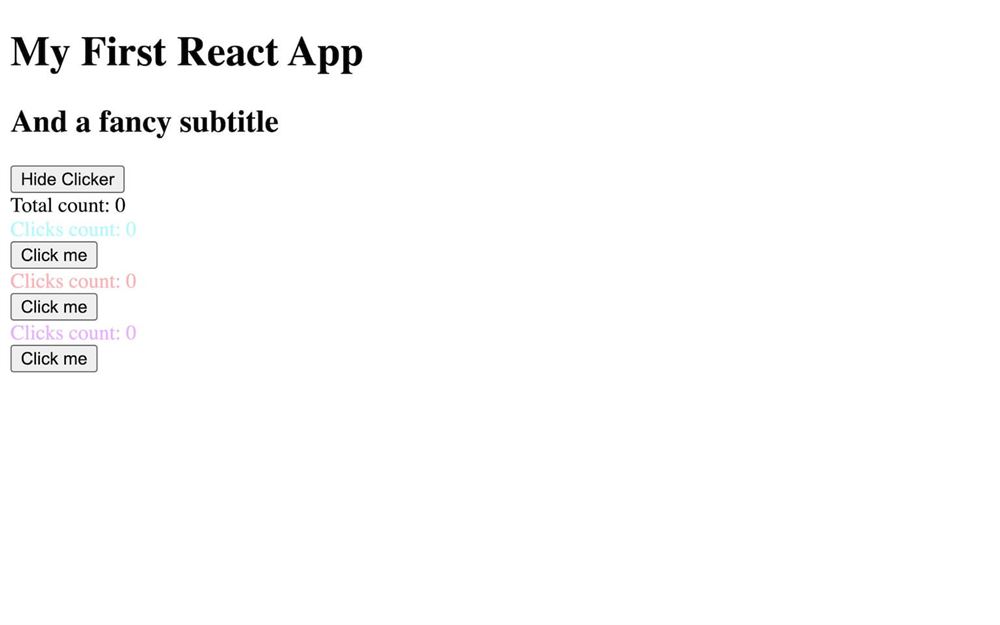
然后,我们可以在 JSX 里、第一个 <Clicker> 之前显示它:
export default function App({ children })
{
    // ...

    return <>
        {/* ... */}

        <div>Total count: { count }</div>

        {/* ... */}
    </>
}
从子组件更新 state
目前,我们的值保持在 0,点击 Clickers 的按钮不会改变它。
直接从子组件获取数据是个坏主意。那会让组件互相依赖,移除某个东西很可能会破坏别的东西。
取而代之,在 App 里,我们要创建一个函数,其目的是递增我们的 count,并把这个函数提供给 Clickers。
然后,Clicker 会在用户点击按钮时调用这个函数。
在 App 里,创建一个 increment 函数,并更新 state 给 count 加 1:
export default function App({ children })
{
    // ...

    const increment = () =>
    {
        setCount(count + 1)
    }

    // ...
}
现在把这个 increment 函数发送给每个 Clicker 的属性:
{ hasClicker && <>
    <Clicker increment={ increment } keyName="countA" color={ `hsl(${ Math.random() * 360 }deg, 100%, 75%)` } />
    <Clicker increment={ increment } keyName="countB" color={ `hsl(${ Math.random() * 360 }deg, 100%, 75%)` } />
    <Clicker increment={ increment } keyName="countC" color={ `hsl(${ Math.random() * 360 }deg, 100%, 75%)` } />
</> }
在子组件里实现
在 Clicker 里,我们可以取回新的 increment prop:
export default function Clicker({ increment, keyName, color })
{
    // ...
}
我们现在需要做的,就是在合适的地方调用 increment()。在我们的情况里,是 buttonClick 函数:
export default function Clicker({ increment, keyName, color })
{
    // ...

    const buttonClick = () =>
    {
        setCount(count + 1)
        increment()
    }

    // ...
}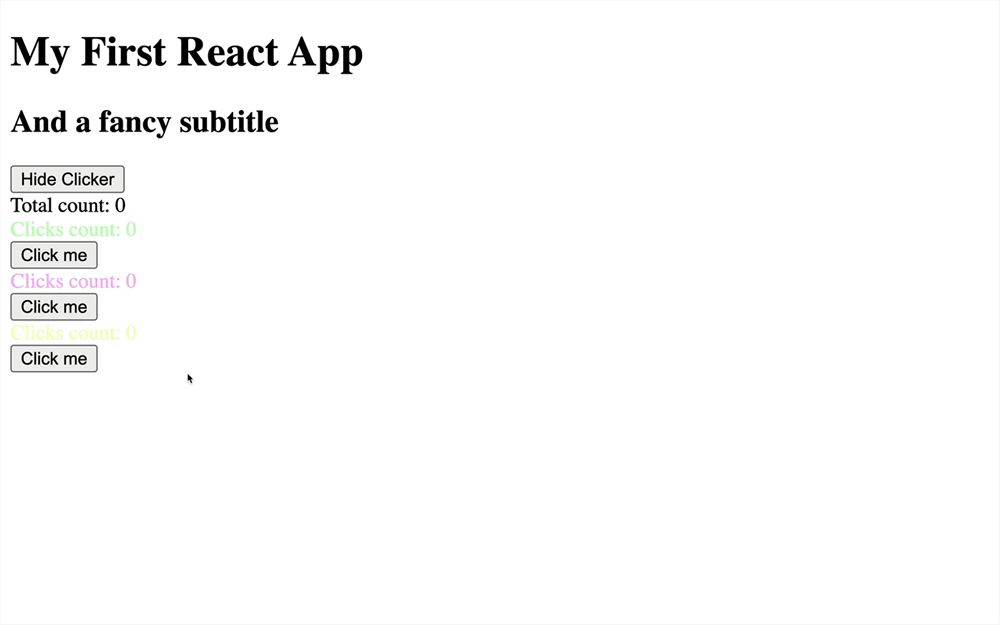
就这样,我们现在有了全局计数,当我们点击某个 Clicker 按钮时它会自己递增。即使移除 Clickers 也不会破坏我们的应用。
这是全局状态管理最简单的版本,但对于更复杂的应用,还有别的方案,比如我们稍后会在本章用到的 Zustand。
循环
目前,我们创建了 3 个 Clickers。
我们要让事情更有趣一点,让开发者决定需要往 <App> 里加多少个 Clickers。
在 index.jsx 里,给 <App> 添加 clickersCount 属性,并设为 4:
root.render(
    <App clickersCount={ 4 }>
        {/* ... */}
    </App>
)
在 App 里取回 clickersCount prop:
export default function App({ clickersCount, children })
{
    // ...
}
现在的问题是,我们如何创建那么多 <Clicker>?
不幸的是,正如我们之前看到的,我们不能在 JSX 里做 for 循环。有多个替代方案,其中一个是用 map 方法。
map() 会遍历一个数组,为数组里的每一项调用我们提供的函数。然后它会返回我们在函数 return 里放的任何东西。
让我们在 return 之前做点实验。
创建一个 tempArray:
const tempArray = []
console.log(tempArray)
这个数组目前里面没有项。我们希望它有 clickersCount 那么长。
我们可以写 Array(clickersCount) 而不是 []。
const tempArray = Array(clickersCount)
console.log(tempArray)
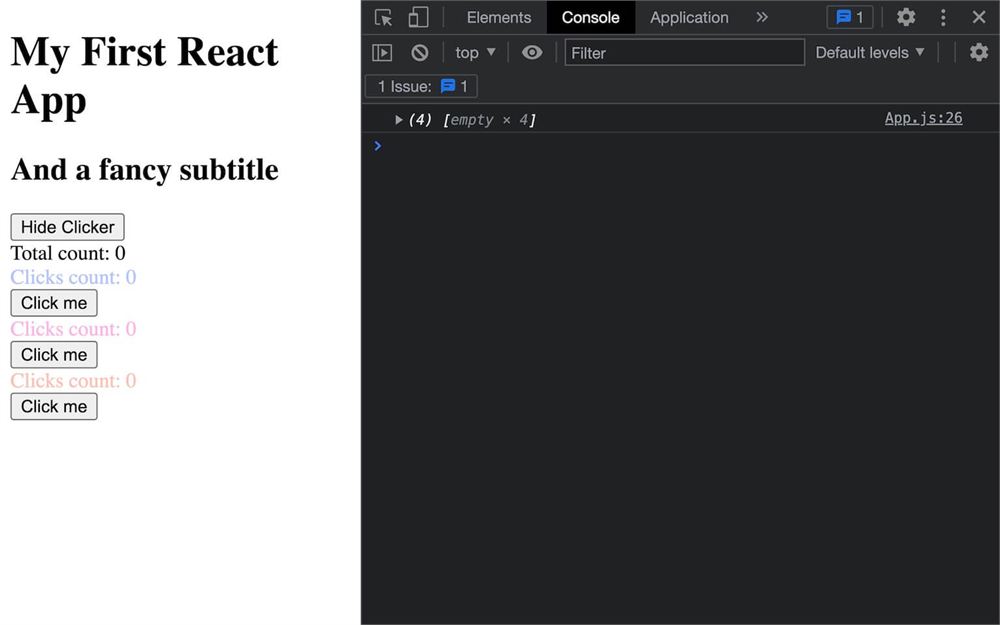
我们现在有了一个长度 4 的数组。简单吧?不幸的是,我们不能对它用 map。
如果我们试试,控制台里什么都不会出现:
const tempArray = Array(clickersCount)
tempArray.map(() =>
{
    console.log('value')
})
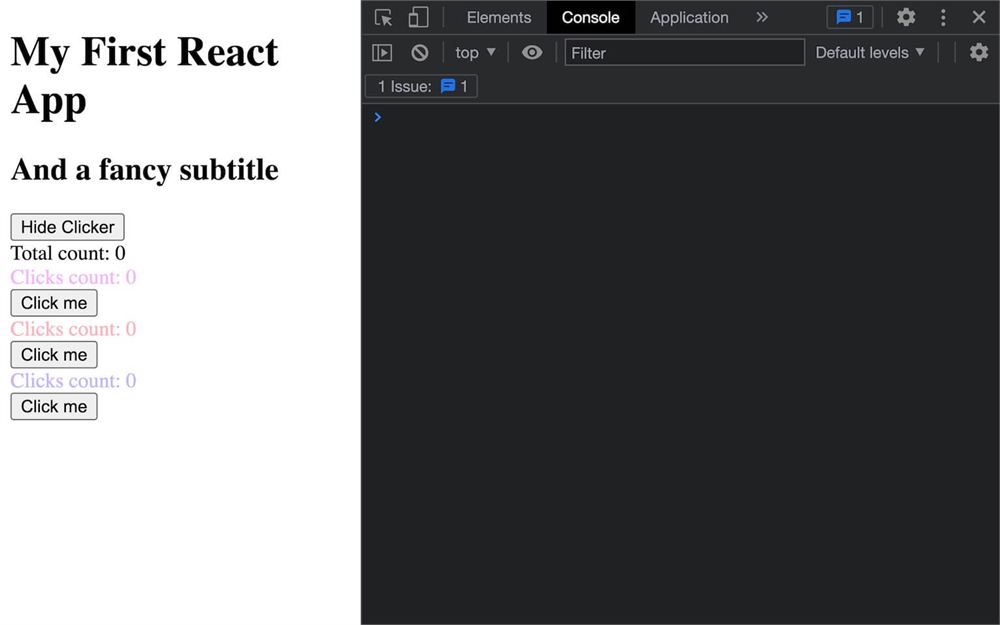
要解决那个,我们可以基于那个数组的值创建一个新数组。
而要得到数组的值(不是数组本身,只是里面包含的东西),我们可以用展开运算符:
const tempArray = [...Array(clickersCount)]
tempArray.map(() =>
{
    console.log('value')
})
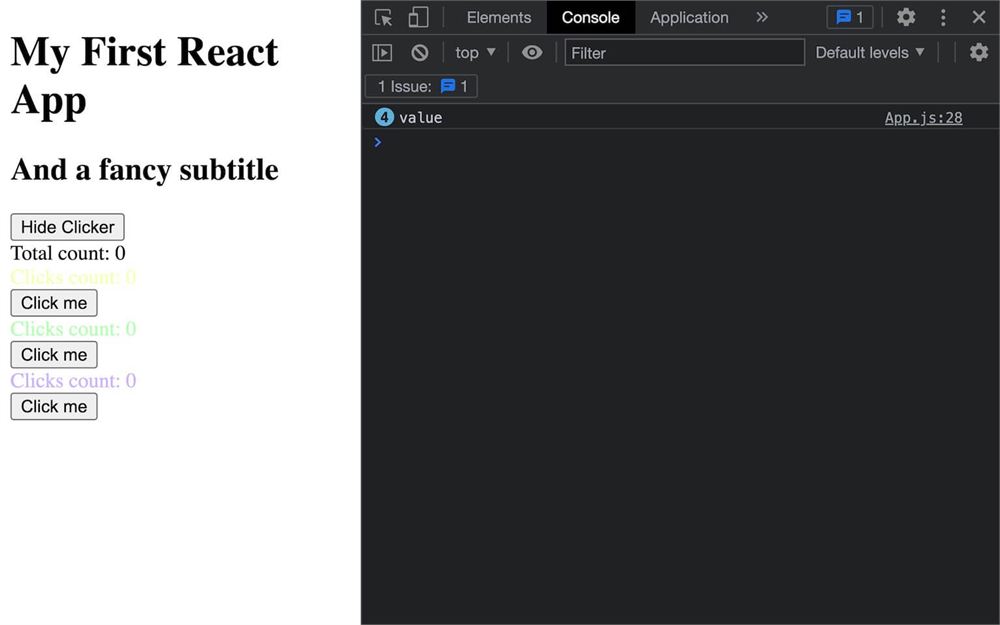
奇怪的是,我们得到的结果数组里填满了 4 个 undefined,而我们可以遍历它(欢迎来到 JavaScript)。
我们甚至可以通过在函数里加参数来访问 value 和 index:
const tempArray = [...Array(clickersCount)]
tempArray.map((value, index) =>
{
    console.log(value, index)
})
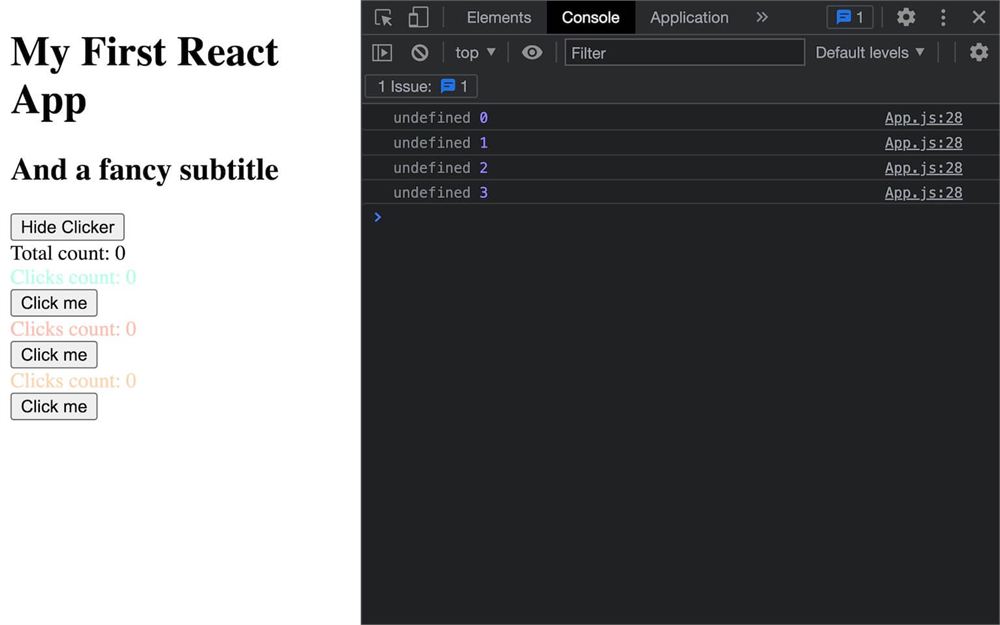
让我们把它搬到 JSX 里:
export default function App({ clickersCount, children })
{
    // ...

    return <>
        {/* ... */}

        { hasClicker && <>
            { [...Array(clickersCount)].map(() =>
                <Clicker
                    increment={ increment }
                    keyName="countA"
                    color={ `hsl(${ Math.random() * 360 }deg, 100%, 75%)` }
                />
            ) }
        </> }

    </>
}
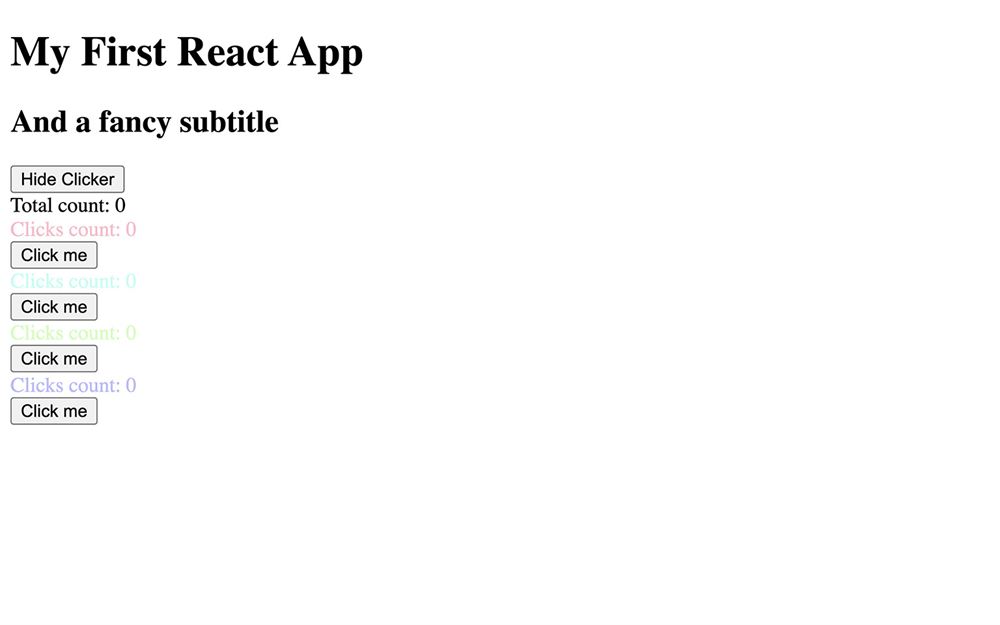
但我们在这里犯了个小错。
如你所见,keyName 属性对所有 Clickers 又是一样的了。
要修复那个,我们可以用 map 函数提供的 index 并做拼接:
export default function App({ clickersCount, children })
{
    // ...

    return <>
        {/* ... */}

        { hasClicker && <>
            { [...Array(clickersCount)].map((value, index) =>
                <Clicker
                    increment={ increment }
                    keyName={ `count${index}` }
                    color={ `hsl(${ Math.random() * 360 }deg, 100%, 75%)` }
                />
            ) }
        </> }

    </>
}
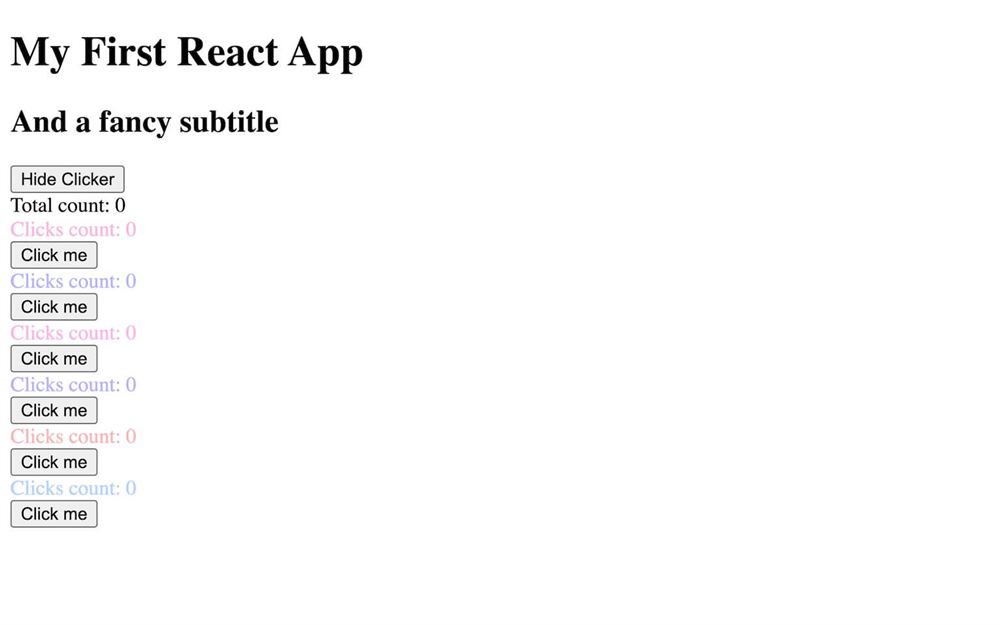
现在我们的 Clickers 回来了。除此之外,我们现在可以用一个简单的属性控制我们想要多少个:
root.render(
    <App clickersCount={ 6 }>
        {/* ... */}
    </App>
)
我们先改回 3。
如果你打开控制台,你会注意到另一个问题:React 提示我们需要给被复制的组件设置一个 key prop。
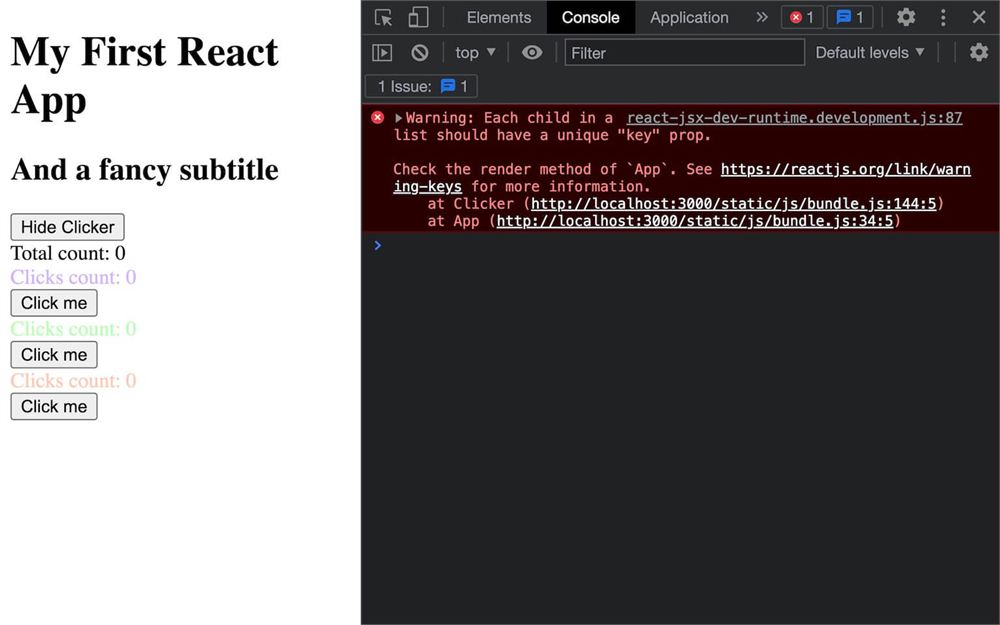
像这样循环时,React 要求我们为迭代的每个元素发送一个唯一的 key 属性。它会帮 React 组织、复用,并知道要重新渲染什么。
但这里其实没什么意义,因为我们只是复制 <Clicker>。
这节课后面,我们会设置一个更有意义的 key,但目前,让我们用 map 参数里的 index 作为 key:
export default function App({ clickersCount, children })
{
    // ...

    return <>
        {/* ... */}

        { hasClicker && <>
            { [...Array(clickersCount)].map((value, index) =>
                <Clicker
                    key={ index }
                    increment={ increment }
                    keyName={ `count${index}` }
                    color={ `hsl(${ Math.random() * 360 }deg, 100%, 75%)` }
                />
            ) }
        </> }

    </>
}
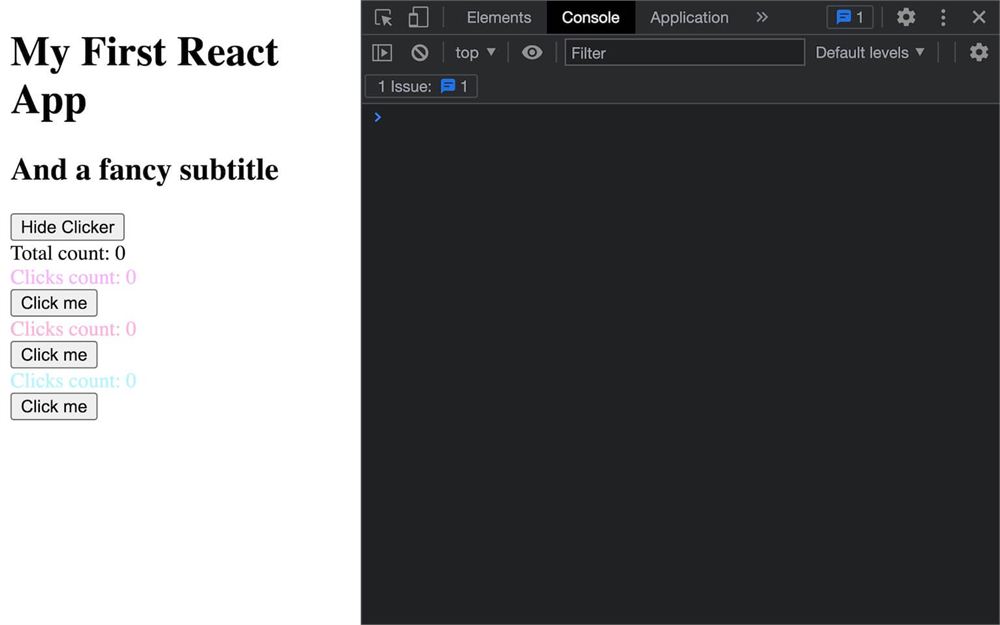
Voilà!错误消失了。
用 useMemo 保存值
点击 Clicker 按钮时,你可能注意到所有 Clicker 的颜色都在变:
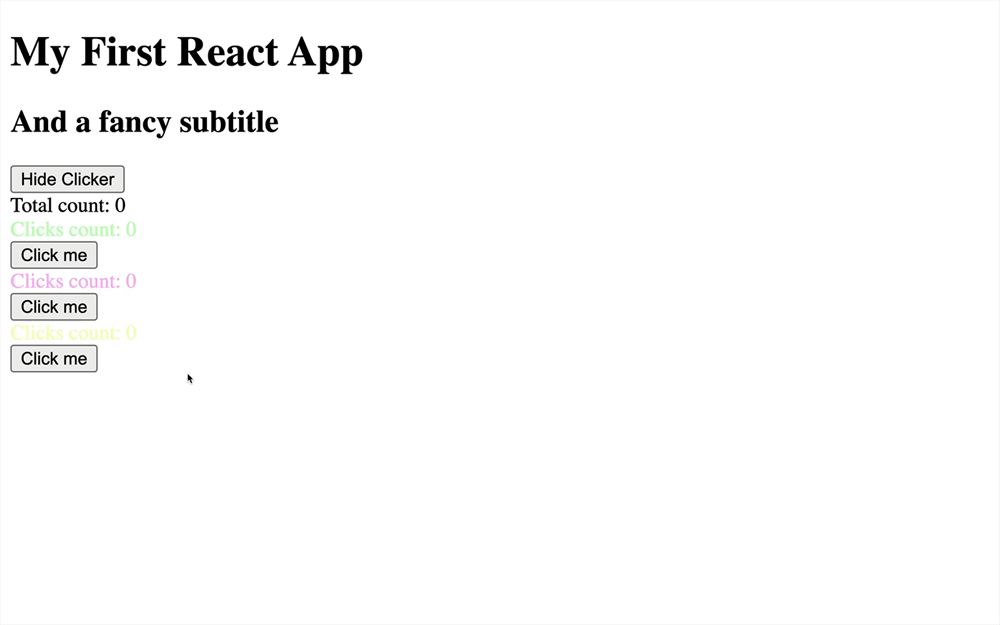
这是正常行为。由于其中一个变量(在我们的情况里是 count)变了,我们的 App 就被重新渲染。
但如果我们想保留颜色呢?
方案 1
作为第一个方案,在不深入了解 React 的情况下,我们可能会想到在 class 之前创建一个颜色数组,然后在 JSX 里使用它。我们来试试。
在 class 外面创建一个 colors 数组,里面放 3 个随机颜色(因为我们有 3 个 Clickers):
const colors = [
    `hsl(${ Math.random() * 360 }deg, 100%, 75%)`,
    `hsl(${ Math.random() * 360 }deg, 100%, 75%)`,
    `hsl(${ Math.random() * 360 }deg, 100%, 75%)`
]

export default function App({ children })
{
    // ...
}
然后在 <Clicker> 上使用它:
export default function App({ children })
{
    // ...

    return <>
        {/* ... */}

        { hasClicker && <>
            { [...Array(clickersCount)].map((value, index) =>
                <Clicker
                    key={ index }
                    increment={ increment }
                    keyName={ `count${index}` }
                    color={ colors[index] }
                />
            ) }
        </> }
    </>
}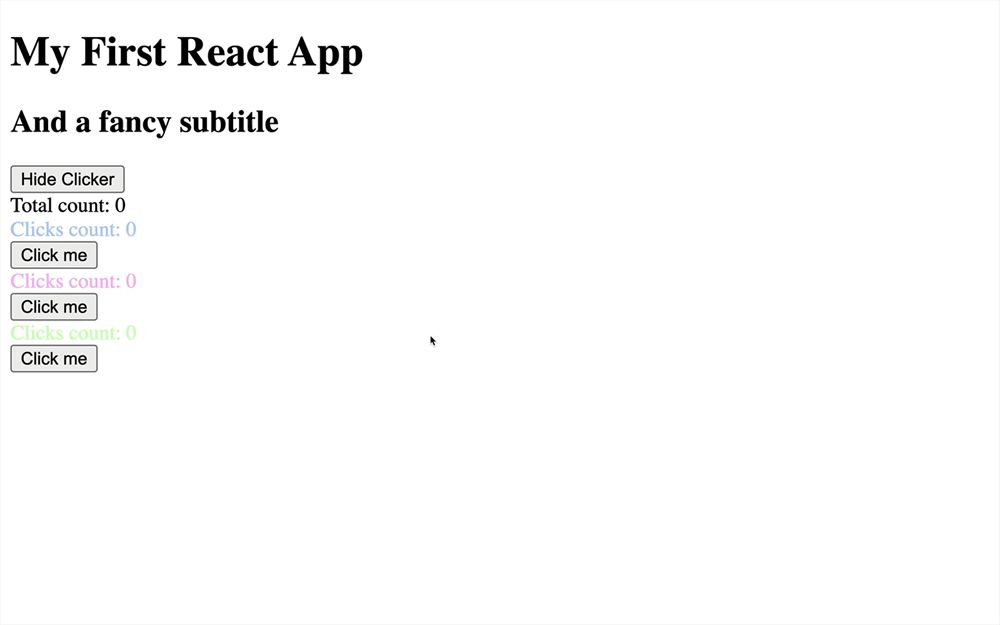
我们就完成了!嗯,其实没有。
在 class 外面加代码是个好方案,有时最简单的方案就是最好的。但在我们的情况里,这很容易被破坏。
首先,如果我们有两个 Apps 呢?
在 index.jsx 里,加第二个 <App>,别忘了加一个 fragment <></>:
root.render(
    <>
        <App clickersCount={ 3 }>
            <h1>My First React App</h1>
            <h2>And a fancy subtitle</h2>
        </App>
        <App clickersCount={ 3 }>
            <h1>My second React App</h1>
            <h2>It's just a copy</h2>
        </App>
    </>
)
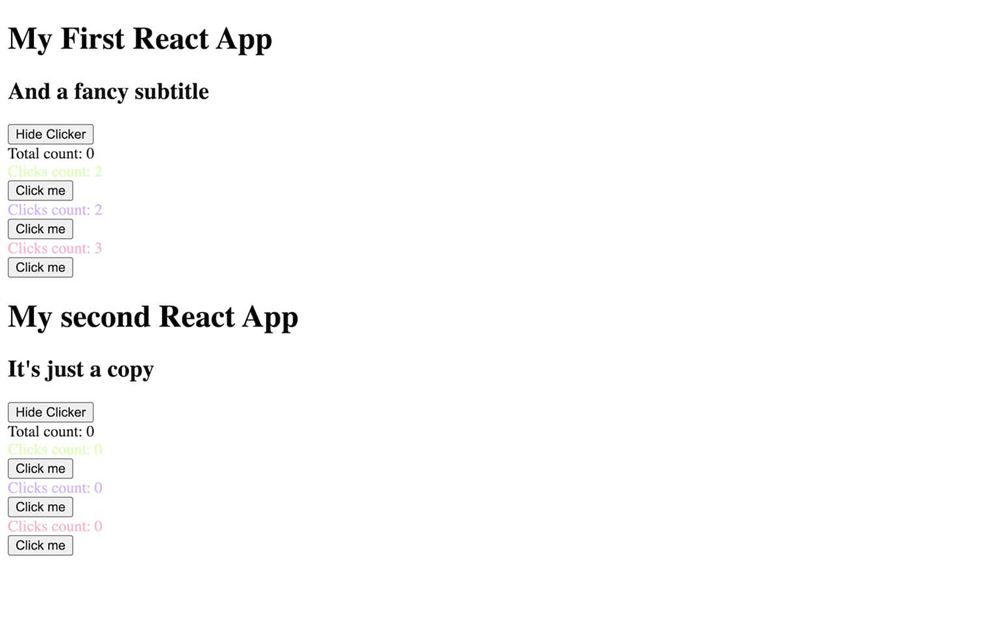
如你所见,颜色是一样的。这是个傻例子,因为我们本该只有一个 <App>,但它在别的场景里、用别的组件也可能发生。
让我们回到一个 <App>:
root.render(
    <App clickersCount={ 3 }>
        <h1>My First React App</h1>
        <h2>And a fancy subtitle</h2>
    </App>
)
另一个问题是,我们可以从 App 属性决定我们有多少个 Clickers。
把 clickersCount 设为 10:
root.render(
    <App clickersCount={ 10 }>
        <h1>My First React App</h1>
        <h2>And a fancy subtitle</h2>
    </App>
)
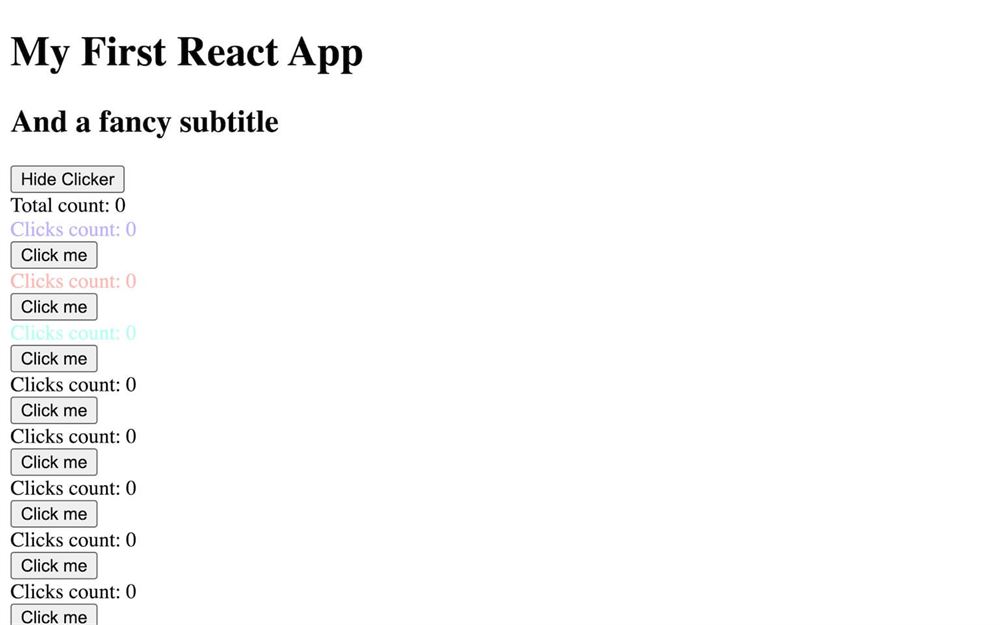
如你所见,只有前三个 Clickers 有颜色,因为我们的 colors 数组只包含 3 个值。
方案 2:用 useMemo
因为我们需要在创建 colors 数组之前知道 clickersCount 的值,我们别无选择,只能把它放回 App 函数里,并在那里修复问题:
export default function App({ clickersCount, children })
{
    // ...

    const colors = [
        `hsl(${ Math.random() * 360 }deg, 100%, 75%)`,
        `hsl(${ Math.random() * 360 }deg, 100%, 75%)`,
        `hsl(${ Math.random() * 360 }deg, 100%, 75%)`
    ]

    return <>
        {/* ... */}
    </>
}
首先,让我们改代码,让 colors 数组包含和 clickersCount 值一样多的项。
创建一个空的 colors 数组,并用一个 for 循环填充它:
export default function App({ clickersCount, children })
{
    // ...

    const colors = []
    for(let i = 0; i < clickersCount; i++)
        colors.push(`hsl(${ Math.random() * 360 }deg, 100%, 75%)`)

    // ...
}
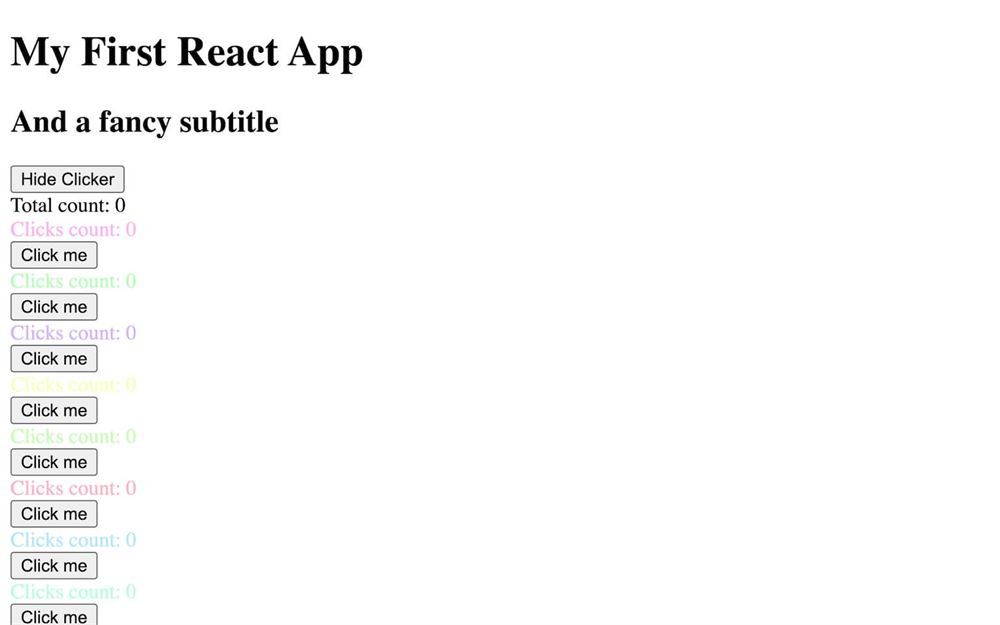
现在,所有 Clickers 都有颜色了,但我们没有解决一个问题:当我们点击任何一个 Clickers 按钮时,它们都会变,因为 state 在变化,App 函数会被再次调用以重新渲染。
我们想做的,是创建那个数组,并让它保持原样,即使 App 被重新渲染,除非 clickersCount 值变化。
而这正是 useMemo hook 所做的。
从 react 导入 useMemo:
import { useMemo, useState } from 'react'useMemo 需要第一个参数是一个函数,第二个参数是一个依赖项数组(有点像 useEffect)。
在这个函数里,我们需要返回想要的值(在我们的情况里是 colors 数组)。如果 useMemo 被再次调用(当 App 被重新渲染时),但依赖项数组里的值没有变化,useMemo 会返回之前的数组。
而如果某个依赖值变了,那么 useMemo 会再次调用这个函数。
在某种意义上,useMemo 像缓存一样工作,只有依赖值变化才能打破它。
调用 useMemo,传给它一个函数和一个数组:
export default function App({ clickersCount, children })
{
    // ...

    const colors = []
    for(let i = 0; i < clickersCount; i++)
        colors.push(`hsl(${ Math.random() * 360 }deg, 100%, 75%)`)

    useMemo(() =>
    {

    }, [])

    // ...
}
现在在里面 return colors 数组,并把 useMemo 的结果赋给 colors 变量:
export default function App({ clickersCount, children })
{
    // ...

    const colors = useMemo(() =>
    {
        const colors = []
        for(let i = 0; i < clickersCount; i++)
            colors.push(`hsl(${ Math.random() * 360 }deg, 100%, 75%)`)

        return colors
    }, [])

    // ...
}
我们需要提供依赖项。在我们的情况里,我们只想在 clickersCount 变化时更新 colors:
export default function App({ clickersCount, children })
{
    // ...

    const colors = useMemo(() =>
    {
        // ...
    }, [ clickersCount ])

    // ...
}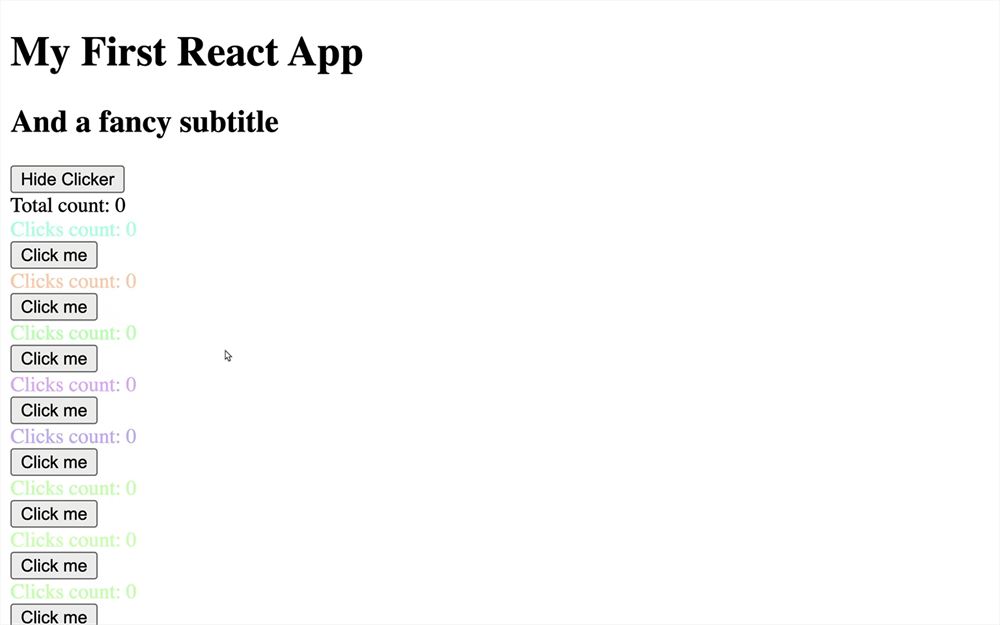
如果 clickersCount 值变化,那么 useMemo 会再次调用函数,我们就总能在 colors 数组里得到正确数量的值。
既然 useMemo 和颜色都弄完了,让我们把 clickersCount 属性设回 3,回到 3 个 <Clicker>:
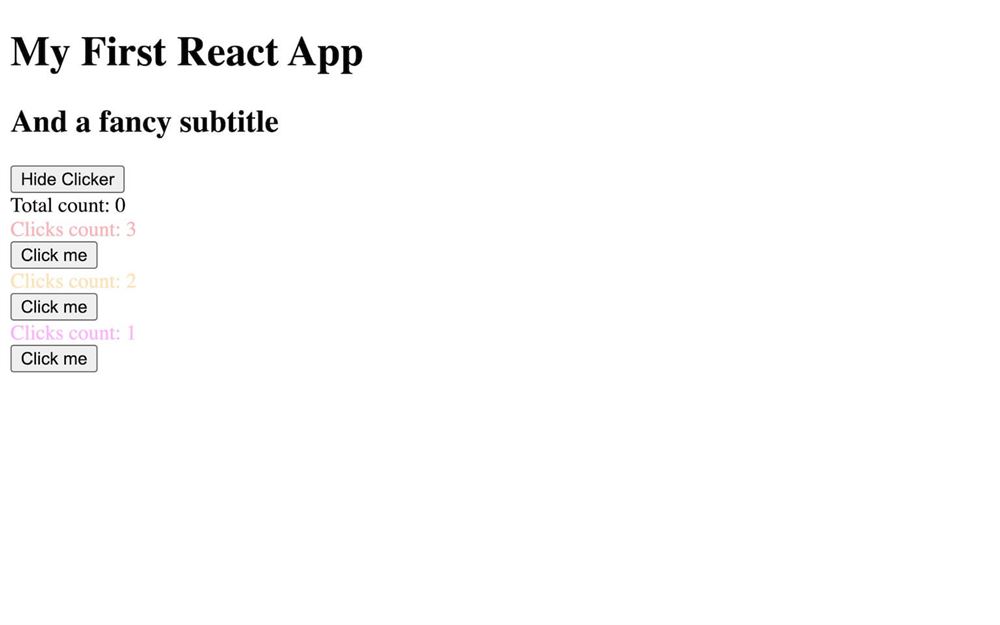
注意,useMemo 通常用来处理复杂计算,防止该计算在每次绘制时都发生,除非真的有必要(如果某个依赖变量变了)。
不过,我们也可以像刚才这样把 useMemo 用于简单计算。
用 useRef hook 使用引用
我们已经看到如何以 React 的方式操作元素、改变样式、发送 props 等等。
但有时,我们确实需要访问 DOM 元素本身,或者我们正在处理的任何原生组件。
接下来我们要做的东西本身没有特定用途,但这个技巧在课程后面会很有用。
要访问实际的元素,我们可以用 useRef hook。
思路是先创建一个引用,然后把它关联到目标元素上。
在 Clicker.jsx 里,从 react 导入 useRef:
import { useRef, useEffect, useState } from 'react'然后创建一个名为 buttonRef 的引用(我们用 Ref 结尾命名变量,但这是可选的):
export default function Clicker({ keyName, color })
{
    const [ count, setCount ] = useState(0)

    const buttonRef = useRef()
    console.log(buttonRef)

    // ...
}
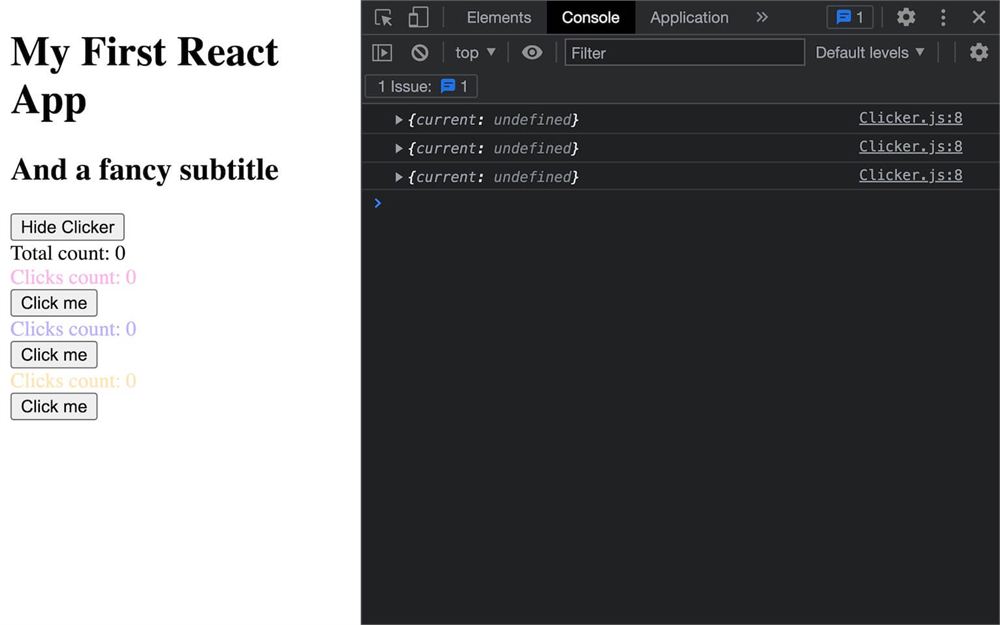
默认情况下,一个引用就是一个简单的对象,它的 current 属性设为 undefined。
现在,用 ref 属性把它关联到 <button>:
export default function Clicker({ keyName, color })
{
    // ...

    return <div>
        <div style={ { color } }>Clicks count: { count }</div>
        <button ref={ buttonRef } onClick={ buttonClick }>Click me</button>
    </div>
}
我们这里做的事听起来可能怪,因为我们是把 buttonRef 赋给元素,而不是把元素赋给 buttonRef。但这就是 React 引用的工作方式,最终,元素会在引用里可用(更准确地说,在引用的 current 属性里)。
我们现在应该能用 buttonRef 访问 <button> 元素了,但有个小问题。
重新加载并检查 buttonRef 的日志:
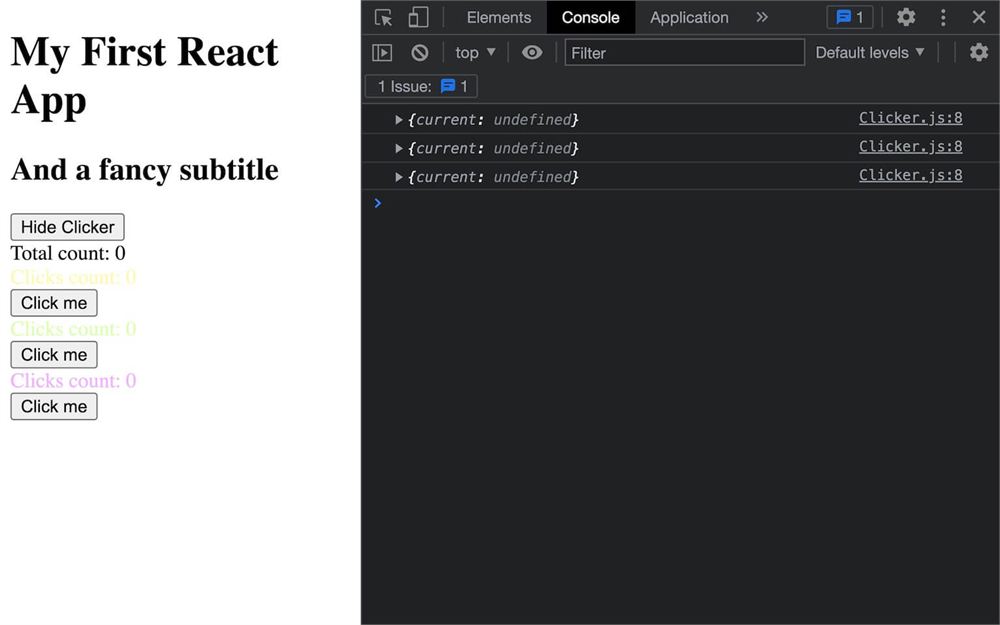
奇怪。我们不是应该得到对实际元素的引用之类的吗?嗯,是的,但日志发生在组件第一次渲染的开头,此时 JSX 还没被渲染。
但如果你做任何会导致组件重新渲染的改动,你会注意到 current 属性现在包含了元素:
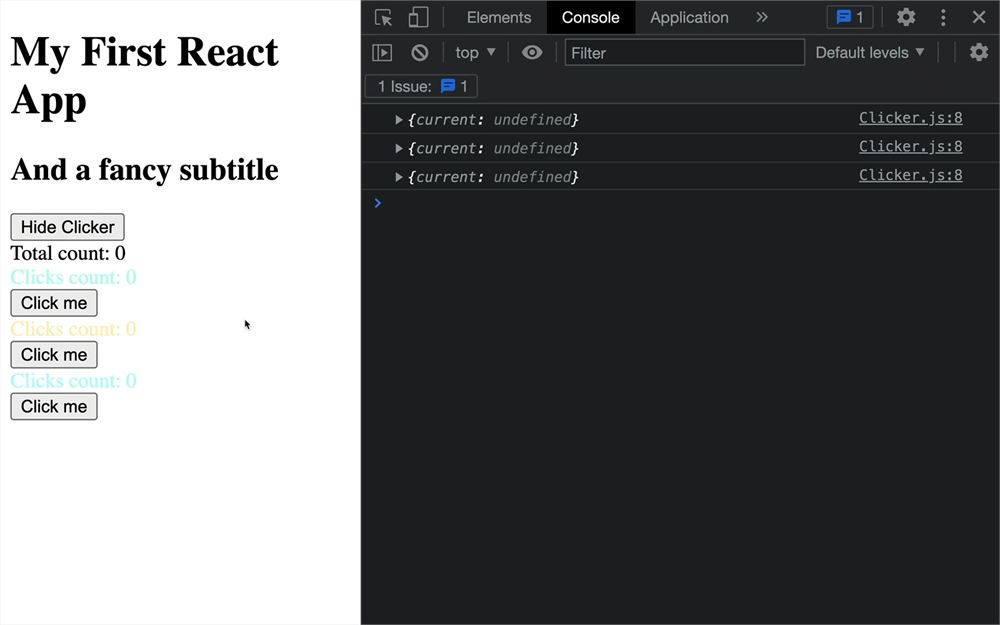
好,这说得通,但如果我们想在第一次渲染时就操作我们的引用呢?
要做到这一点,我们可以用 useEffect 并把依赖项数组设为空。正如我们在前面几节讲过的,把依赖项设为空数组会让函数只在第一次渲染时被调用一次,但它实际上是在 JSX 被渲染之后才调用。
既然组件里已经有一个了,我们可以在里面测试我们的 buttonRef:
export default function Clicker({ keyName, color })
{
    // ...

    const buttonRef = useRef()

    useEffect(() =>
    {
        console.log(buttonRef)

        // ...
    }, [])

    // ...
}
如果你想确保它正常工作,给它重新加载一下。
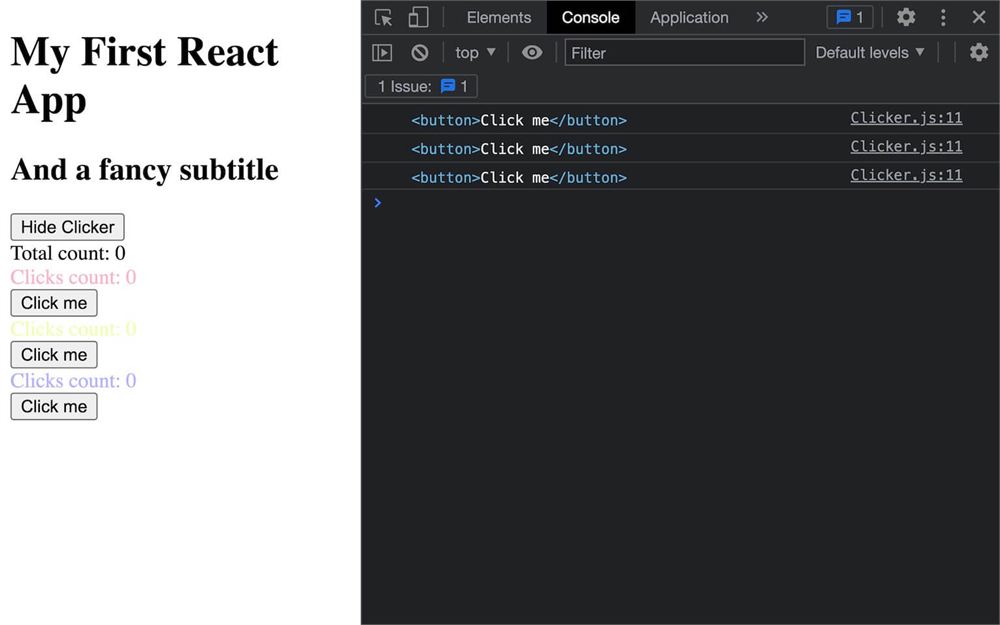
我们现在可以访问原生 DOM 元素,并对它做任何我们想做的事,但别忘了用 current 属性,而不是引用变量本身:
export default function Clicker({ keyName, color })
{
    // ...

    const buttonRef = useRef()

    useEffect(() =>
    {
        buttonRef.current.style.backgroundColor = 'papayawhip'
        buttonRef.current.style.color = 'salmon'

        // ...
    }, [])

    // ...
}
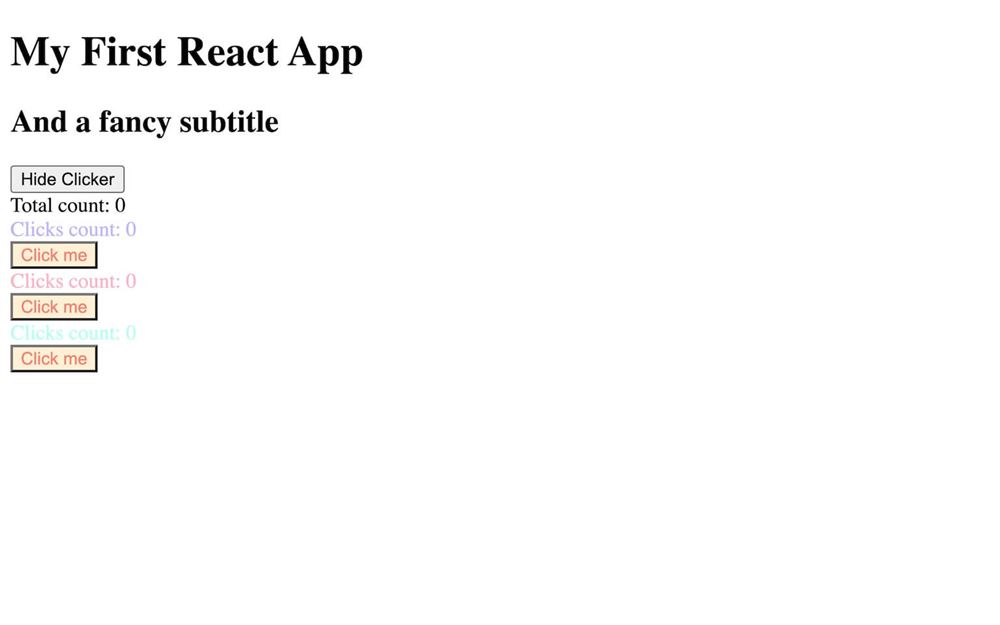
这个例子不太贴切,但等我们开始用 React Three Fiber 时,它会更有意义、变得非常有用。
People 组件
React 基础我们快讲完了,但还需要检查几件事。
我们要创建一个 People 组件,它会显示一些从 API 获取的随机名字。
在 /src/ 里,创建一个 People.jsx 文件,以及惯常的组件函数作为 default:
export default function People()
{
    return <div>
        <h2>People</h2>
    </div>
}
在 App.jsx 里导入它,并把它加到 JSX 末尾:
// ...
import People from './People.jsx'

export default function App({ children })
{
    // ...

    return <>
        {/* ... */}

        <People />

    </>
}
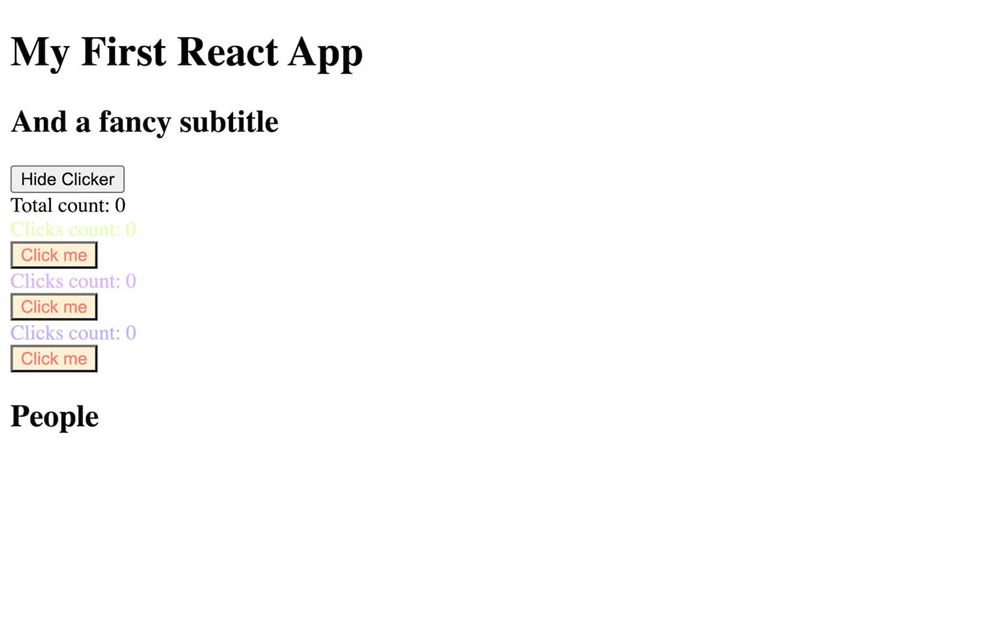
用 map 显示数据
首先,我们自己创建一个 people 数组。
目前它会是一个固定的数组,但之后数据会来自 API。因为这个原因,我们要把它当作一个会变化、且变化时应该重新渲染组件的值来处理。
在 People.jsx 里,从 react 导入 useState,并创建 people 和 setPeople state:
import { useState } from 'react'

export default function People()
{
    const [ people, setPeople ] = useState([])

    return <div>
        <h2>People</h2>
    </div>
}
目前,让我们先给这个数组填上随机值:
export default function People()
{
    const [ people, setPeople ] = useState([
        { name: 'John' },
        { name: 'Jane' },
        { name: 'Sudo' },
        { name: 'Boy' }
    ])

    return <div>
        <h2>People</h2>
    </div>
}
问题是,我们如何在数组里循环以在 JSX 里显示数据。
嗯,我们在前面一节已经学过。我们要用 map(),但这次,不是在奇怪地生成的数组上。这次,我们要在 people 数组上做。
现在是自己动手试试的好时机。把那个 people 数组里的每个人显示在一个 <li> 里,并把那些 <li> 包在一个 <ul> 里。
如果你对 map 还不熟练,可以先在 JSX 之外试试。然后,试着在 JSX 里做,并显示那些人的名字。
让我们一起做。
首先,在 JSX 里用 map:
export default function People()
{
    // ...

    return <div>
        <h2>People</h2>

        { people.map(() => {}) }
    </div>
}
现在,加一个 person 参数,并在函数里 return person.name:
export default function People()
{
    // ...

    return <div>
        <h2>People</h2>

        { people.map((person) => { return person.name }) }
    </div>
}
既然我们用的是箭头函数,可以简化它:
export default function People()
{
    // ...

    return <div>
        <h2>People</h2>

        { people.map(person => person.name) }
    </div>
}
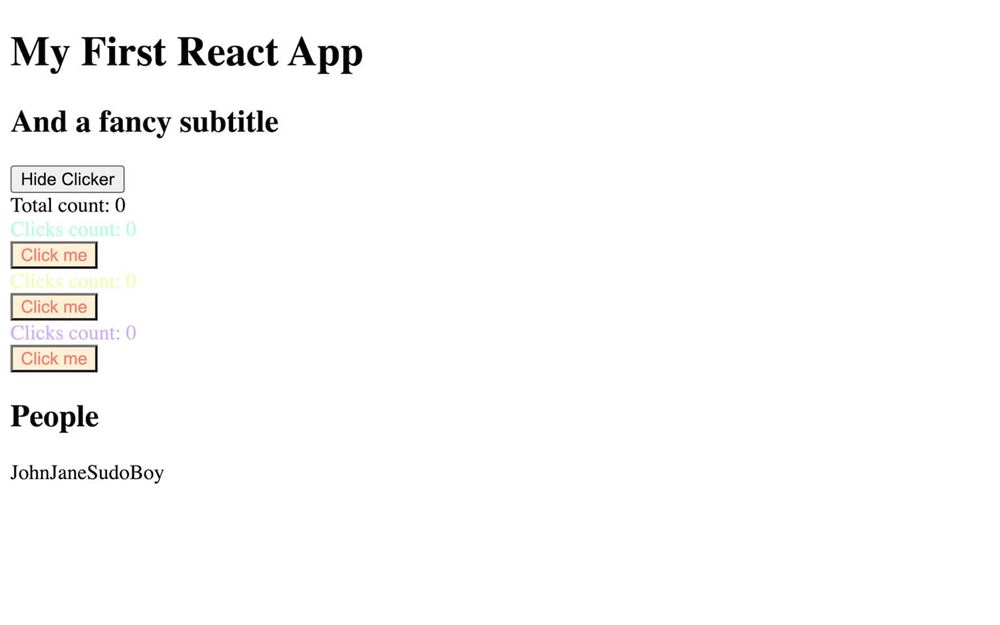
它起作用了,但所有名字都连在一起了。
让我们在 map 外面包一个 <ul></ul>,并在 return 里用 <li></li>:
export default function People()
{
    // ...

    return <div>
        <h2>People</h2>

        <ul>
            { people.map(person => <li>{ person.name }</li>) }
        </ul>
    </div>
}
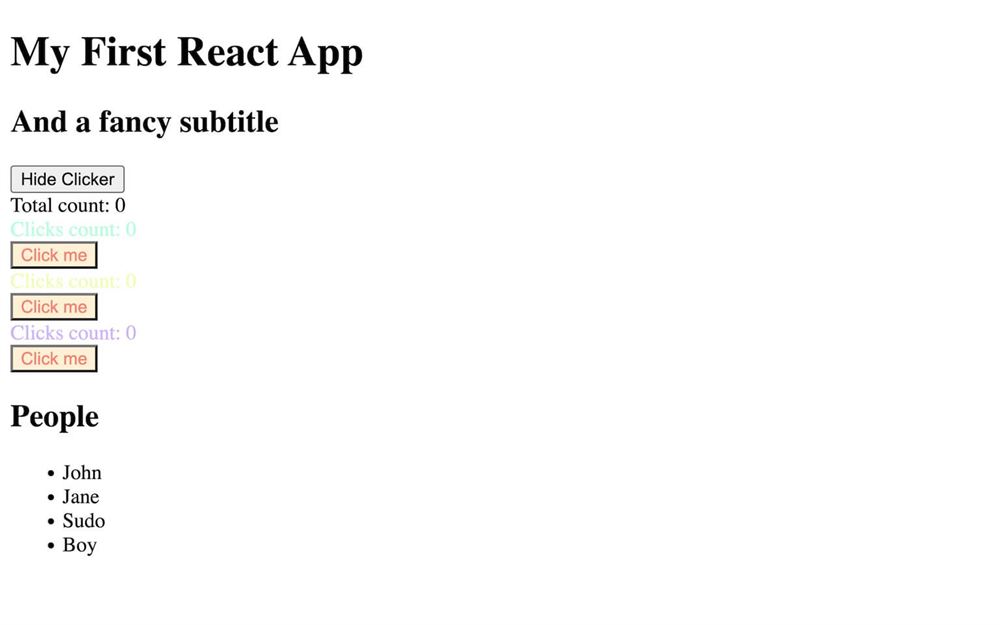
这就是 JSX 里事情变得有点乱的地方。我们有 {},里面还有更多 {}。
随意加换行和缩进:
export default function People()
{
    // ...

    return <div>
        <h2>People</h2>

        <ul>
            { people.map(person =>
                <li>{ person.name }</li>
            ) }
        </ul>
    </div>
}
如果你检查控制台,你会看到 React 给我们一条错误消息:
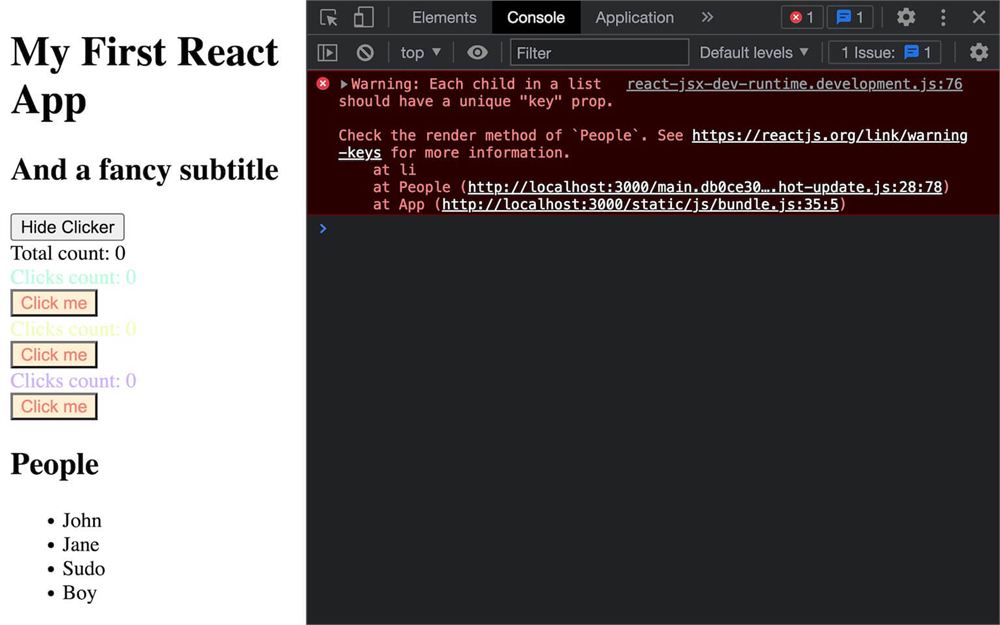
如果你记得我们之前做的事,我们需要加一个 key 属性。
这次,我们不依赖 index。我们要给 people 数组里的每个人加一个 id 属性。别担心,这其实就是我们用 API 时会得到的东西。
给 people 数组里的每个人加一个 id:
export default function People()
{
    const [ people, setPeople ] = useState([
        { id: 1, name: 'John' },
        { id: 2, name: 'Jane' },
        { id: 3, name: 'Sudo' },
        { id: 4, name: 'Boy' }
    ])

    // ...
}
并在 <li> 里用它:
<ul>
    { people.map(person =>
        <li key={ person.id }>{ person.name }</li>
    ) }
</ul>
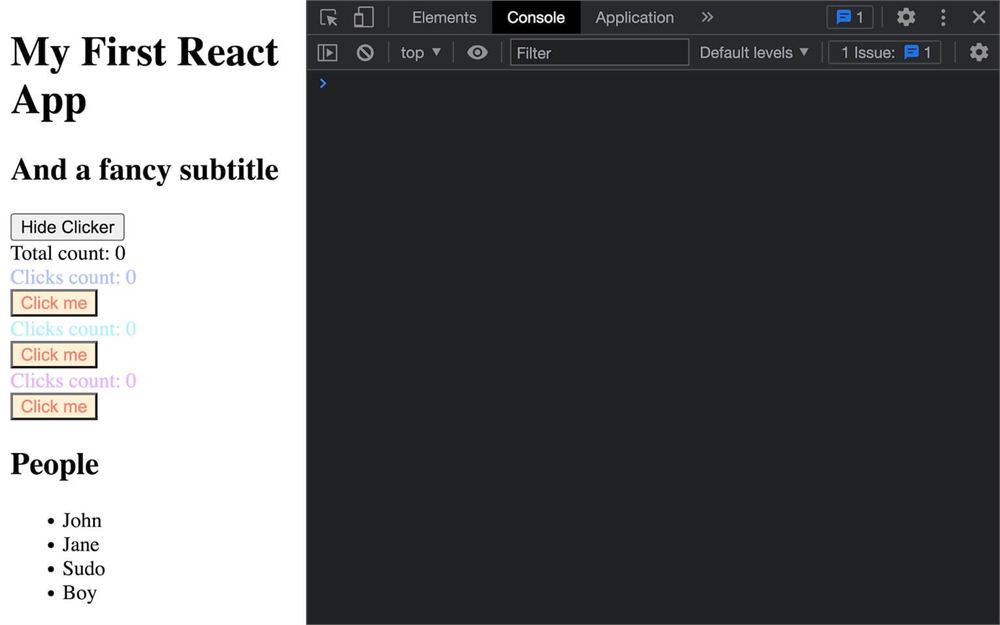
结果一样,但错误消失了。
记住,我们这么做不只是为了摆脱错误。React 现在能在非常特定的情况下做额外优化,比如元素被销毁、添加,或者它们的顺序变化时。
从 API 获取数据
我们不想用那个静态数组,我们希望数据来自 API。
我们要用 JSONPlaceholder API,更确切地说,是这个端点:https://jsonplaceholder.typicode.com/users
要从 URL 获取数据,我们可以用 fetch JavaScript API。
问题是,我们应该把调用放在哪里?
首先,在 People.jsx 里创建一个 getPeople 函数:
export default function People()
{
    // ...

    const getPeople = () =>
    {

    }

    // ...
}
我们不想每次组件重新渲染时都调用这个函数。相反,我们只想在第一次渲染时调用它,我们可以用 useEffect 做到。
从 react 导入 useEffect:
import { useEffect, useState } from 'react'在 getPeople 之后调用它,并传一个空数组作为第二个参数,这样它只在第一次渲染时被调用:
export default function People()
{
    // ...

    useEffect(() =>
    {

    }, [])

    // ...
}
现在我们可以在里面调用 getPeople():
export default function People()
{
    // ...

    const getPeople = () =>
    {
    }

    useEffect(() =>
    {
        getPeople()
    }, [])

    // ...
}
我们本可以把指令直接放在 useEffect 函数里,但你会看到把 getPeople 单独拿出来会变得有用。
在 getPeople 函数里,用 fetch API:
const getPeople = () =>
{
    const request = fetch('https://jsonplaceholder.typicode.com/users')

    console.log(request)
}
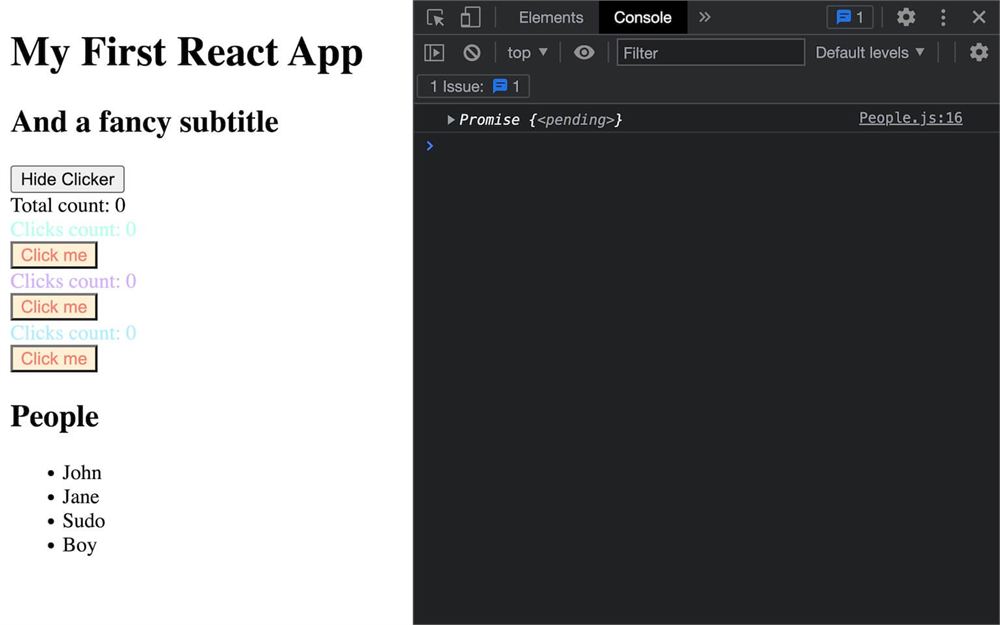
如果你检查日志,你会看到我们在 request 变量里没有得到 API 结果。相反,我们得到一个 Promise。
如果你熟悉 fetch API 和 promise,你大概知道接下来会怎样。不过,我们还是全部解释一遍,这样初学者不会迷路。如果你已经知道如何使用 fetch,可以随意跳过这部分。
注意,接下来关于 fetch 的内容与 React 无关,但我忍不住想把一切都详细解释一遍。
发起请求并得到结果需要时间。它可能需要几毫秒,在最坏的情况下可能需要几秒(糟糕的网络、糟糕的服务器、大量要传输的数据等等),而我们不想让 JavaScript 在做这件事时卡住。
这就是 Promise 来救场的地方。
Promise 会立即返回,即使请求(或正在发生的任何事情)仍在进行。然后我们可以提供要执行的指令,那些指令只会在 Promise 完成它的任务后才被执行。
Promise 可以用于很多涉及等待的事情,但我们会专注于 fetch。
要提供接下来应该执行的指令,我们可以在 Promise 上用 then() 方法,并传给它一个函数:
const getPeople = () =>
{
    const request = fetch('https://jsonplaceholder.typicode.com/users')
    request.then((response) =>
    {
        console.log(response)
    })
}
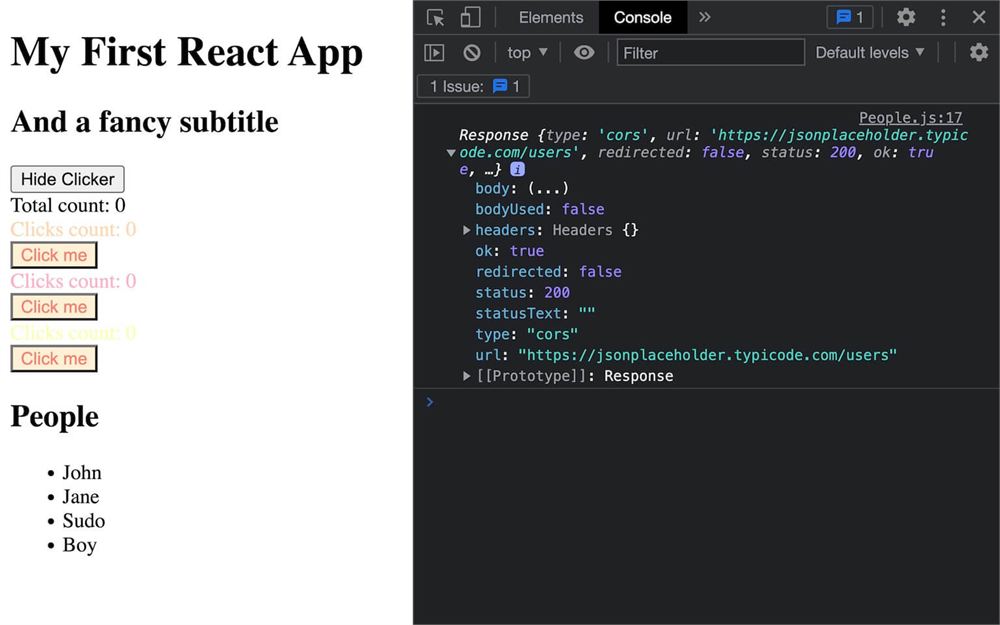
我们的函数会在请求完成后被调用,但不幸的是,这看起来不像是我们期待的数据。
因为 fetch API 不知道该怎么处理数据,我们得自己来。
在我们的情况里,我们想把数据解析成 JSON,我们可以用 json() 方法在刚收到的对象上做这件事:
const getPeople = () =>
{
    const request = fetch('https://jsonplaceholder.typicode.com/users')
    request.then((response) =>
    {
        const parse = response.json()
        console.log(parse)
    })
}
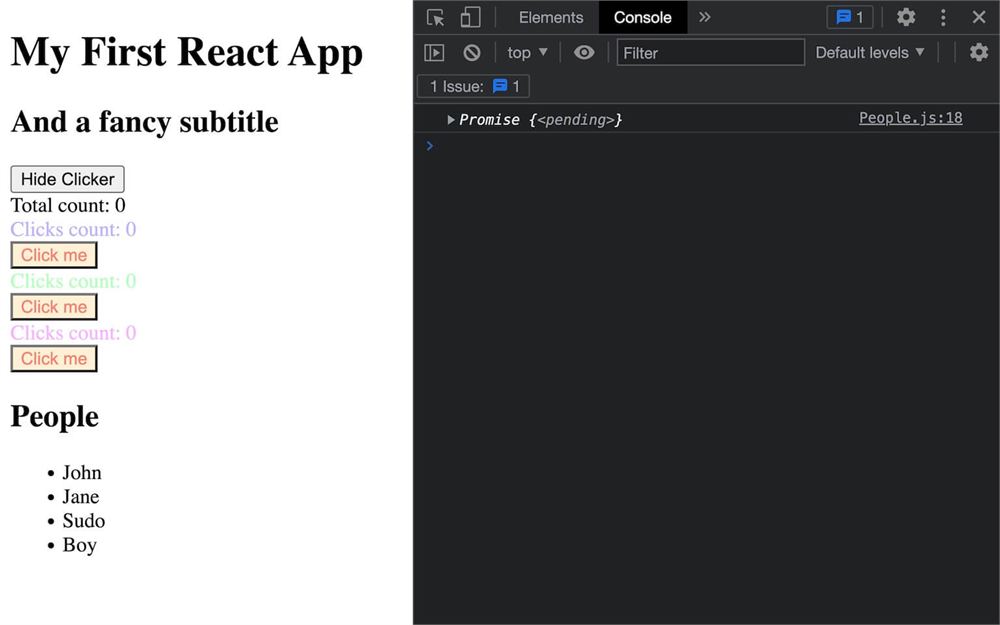
你猜怎么着?我们又得到一个 Promise。这可能听起来怪,因为解析数据不应该花时间,但它其实是个相当长的过程,尤其如果数据很多。这就是为什么它在一个不同的线程上做,这样就不会卡住我们的主脚本。
同样,我们可以用 then():
const getPeople = () =>
{
    const request = fetch('https://jsonplaceholder.typicode.com/users')
    request.then((response) =>
    {
        const parse = response.json()
        parse.then((result) =>
        {
            console.log(result)
        })
    })
}
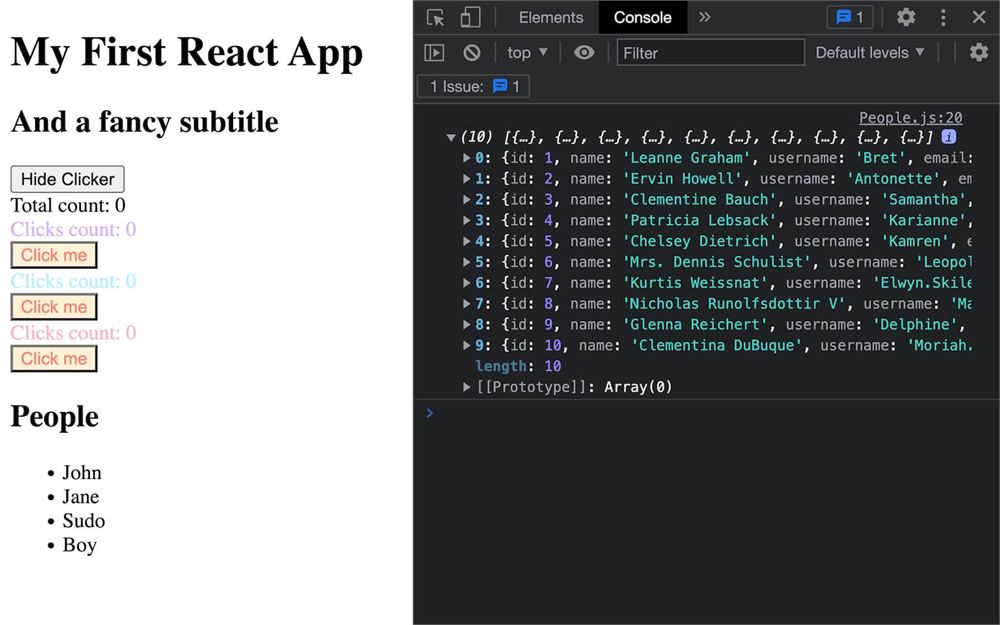
现在我们得到真正的数据作为 result。
不太喜欢这段傻代码?我也不喜欢。但好消息是,我们可以把它重构成短得多的样子。
首先,我们可以返回 response.json() promise,并把两个 then() 链在初始的 fetch() 上:
const getPeople = () =>
{
    fetch('https://jsonplaceholder.typicode.com/users')
        .then((response) =>
        {
            return response.json()
        })
        .then((result) =>
        {
            console.log(result)
        })
}
因为我们的箭头函数里只有一条指令、一个参数,我们可以去掉 ()、{} 和 return:
const getPeople = () =>
{
    fetch('https://jsonplaceholder.typicode.com/users')
        .then(response => response.json())
        .then(result => console.log(result))
}
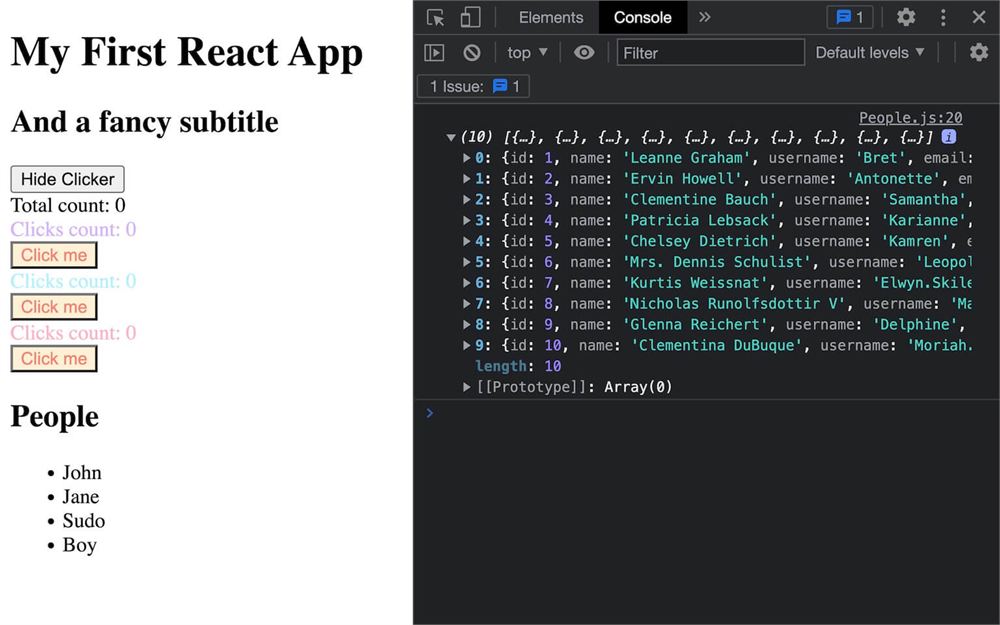
已经更好了,但我们还可以再进一步。
我们要告诉整个 getPeople 函数让它变成异步的。
要做到这一点,在箭头函数前面加 async:
const getPeople = async () =>
{
    // ...
}
这样做之后,我们可以在每条返回 Promise 的指令前加 await 关键字,并把结果直接保存到变量里:
const getPeople = async () =>
{
    const response = await fetch('https://jsonplaceholder.typicode.com/users')
    const result = await response.json()
    console.log(result)
}
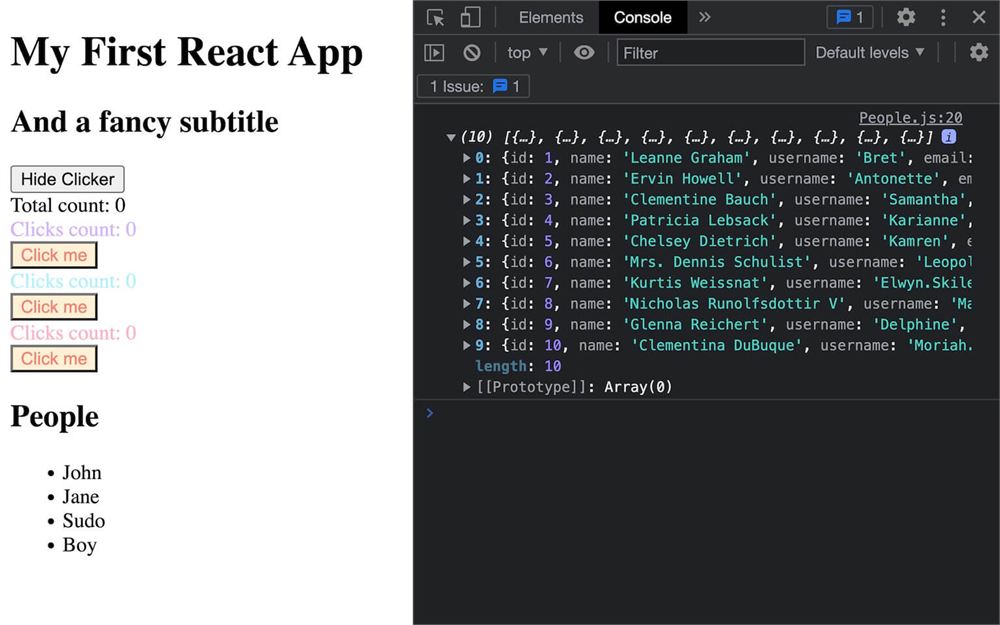
代码会停下来等待 Promise 被解决,然后再继续下一行,但函数外面的一切会继续工作,不会卡住整个网站。
我们现在可以用 setPeople 更新我们的 people state,并把初始 people 数组设为 []:
export default function People()
{
    const [ people, setPeople ] = useState([])

    const getPeople = async () =>
    {
        const response = await fetch('https://jsonplaceholder.typicode.com/users')
        const result = await response.json()
        setPeople(result)
    }

    // ...
}
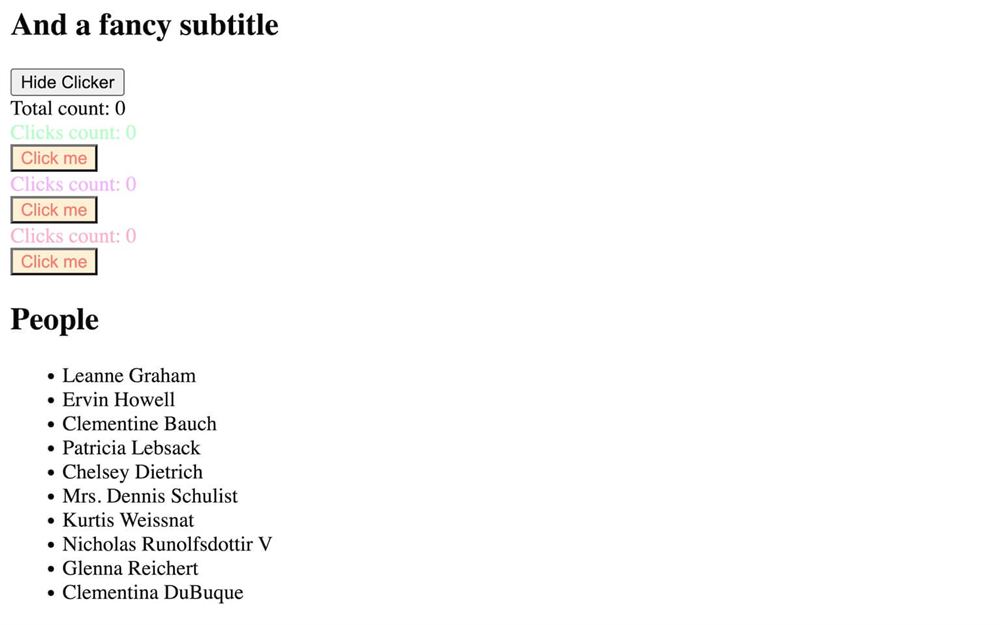
就这样,我们有了一个从 API 获取数据的组件,我们的应用对输入数据做出反应,并在信息准备好时显示它。
如果你想再进一步练习,试着在获取数据时加一条“加载中”的消息。
性能与虚拟 DOM
关于我们到目前为止讲的一切,你可能有一个担忧,就是性能。所有这些特性和机制对我们的电脑来说似乎要做很多工作,对吧?
嗯,也对也不对。当数据变化时,组件会被重新渲染,如果你用的是函数组件(就像我们做的),你会看到函数里发生的一切似乎都被再次调用了。但这并不意味着整个组件都会被重新渲染,尤其不意味着用户可见的部分会被重新渲染。事实上,只有发生变化的部分会被重新渲染。
要做到这一点,React 使用了我们所说的虚拟 DOM。虚拟 DOM 是你应用的结构化表示。它不会显示在屏幕上,它的用途是在数据变化时与之前的状态进行比较。如果它的某些部分确实变了,那么那些部分对应的真实 DOM(我们看到的那个)会被重新渲染。
不过,组件里那些指令还是会被调用,对吧?是的,但 React 提供了一堆工具来优化这部分。假设你在一个巨大的数组上做繁重的指令,需要几毫秒才能完成。再假设你有一个变化很多的 state。那么我们的组件会被重新渲染很多次,而我们的繁重指令每次都会被执行。
在这种情况下,我们可以用 React 提供的众多工具之一,而我们之前其实已经用过它们了。举个例子,我们可以把值放在 useState 里,这样它只在第一次渲染时计算。而如果那些指令需要在某些参数变化时再次执行,那么我们可以改用 useMemo,并在依赖项数组里指定哪些变量应该触发重新计算。
这只是一个例子,我们会在接下来几节课里把它付诸实践。
另外注意,留意潜在的性能问题是好习惯,但不要太担心组件被重新渲染。除非你在做疯狂的计算,否则你的电脑能应付这里那里的一些指令。
更进一步
React 基础就到这里。我们其实学的比本章其余部分需要的多了一点,但我只是想确保你有足够的知识,能在一个稳固的基础上开始你的 React 之旅。
关于 React 还有很多要学的,比如全局状态、服务器端渲染、许多其他 hook 等等,你可以在官方网站的下面两页找到很多学习资源:
现在我们已经了解了 React,是时候学习如何用 React Three Fiber 创建 Three.js 体验了。我得提醒你,你即将踏上的是一段充满奇迹的旅程。